For the complete documentation index, see llms.txt. This page is also available as Markdown.

Storyboarding and Previewing

Storyboard a show before it's designed, share it with customers and partner organisations, and review the final rendered preview together — all from a single public link.

Once a Show is created and the logistical groundwork is in place, two creative-loop tools take over: the Storyboarding tool for pre-production visualisation, and the Shareable Render Preview for post-render customer approval. Both are built around the show's single public link, so customers and partner organisations can participate without ever needing a Verge account.

The Storyboarding Tool

The storyboard is the centerpiece of pre-production. It lets producers and designers communicate the creative vision of a show — slide by slide — long before any drone-level design work begins in the Design Studio.

A storyboard is composed of an ordered set of slides, each representing a single beat, element, or scene of the show. Slides can be rearranged via drag-and-drop, individually replaced, or duplicated as the creative direction evolves.

Bringing Your Own Design Elements

Producers often arrive with their own creative deliverables — sketches, reference art, mood boards, or vector logos. The storyboarding tool accepts uploaded PNG, JPEG, and SVG files (up to 16 MB each). SVG uploads are flagged as studio-readable, meaning they can be exported and imported directly into the Design Studio as the starting point of a real design.

Each slide can hold a different media type — bring your own artwork, pick from existing assets, or generate a new slide.
Selecting from Existing Show Effects

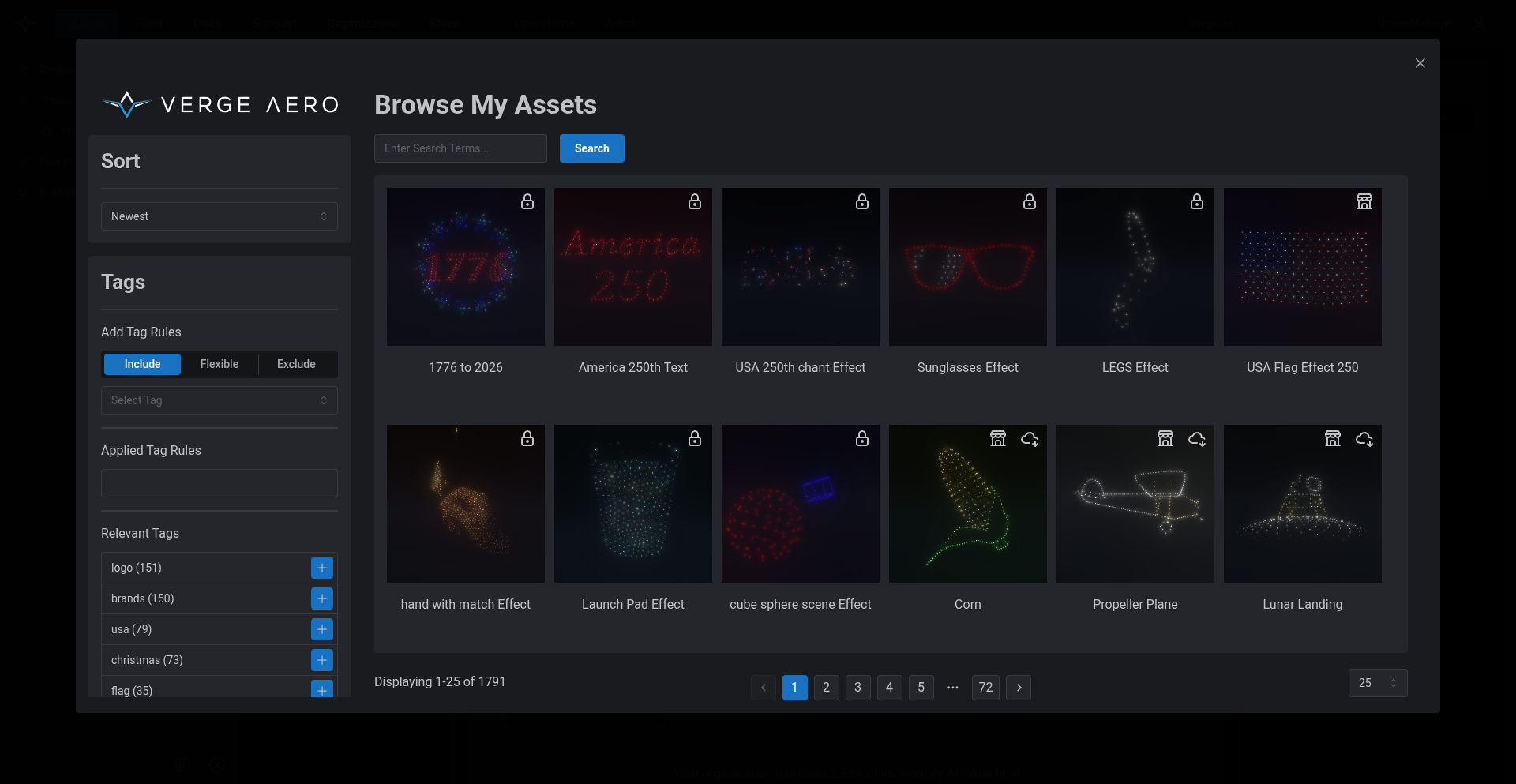
If your organization has built up a library of past designs, you don't have to start from scratch. The storyboard tool can pull directly from your Show Effect asset library, letting you drop a previously designed element (a logo formation, a comet burst, a signature sequence) straight onto a slide. This is especially useful for repeat clients, recurring brands, or template-driven shows.

Browse the organization's show effect library and pick from existing/past assets to populate a slide.
Generating Slides with AI

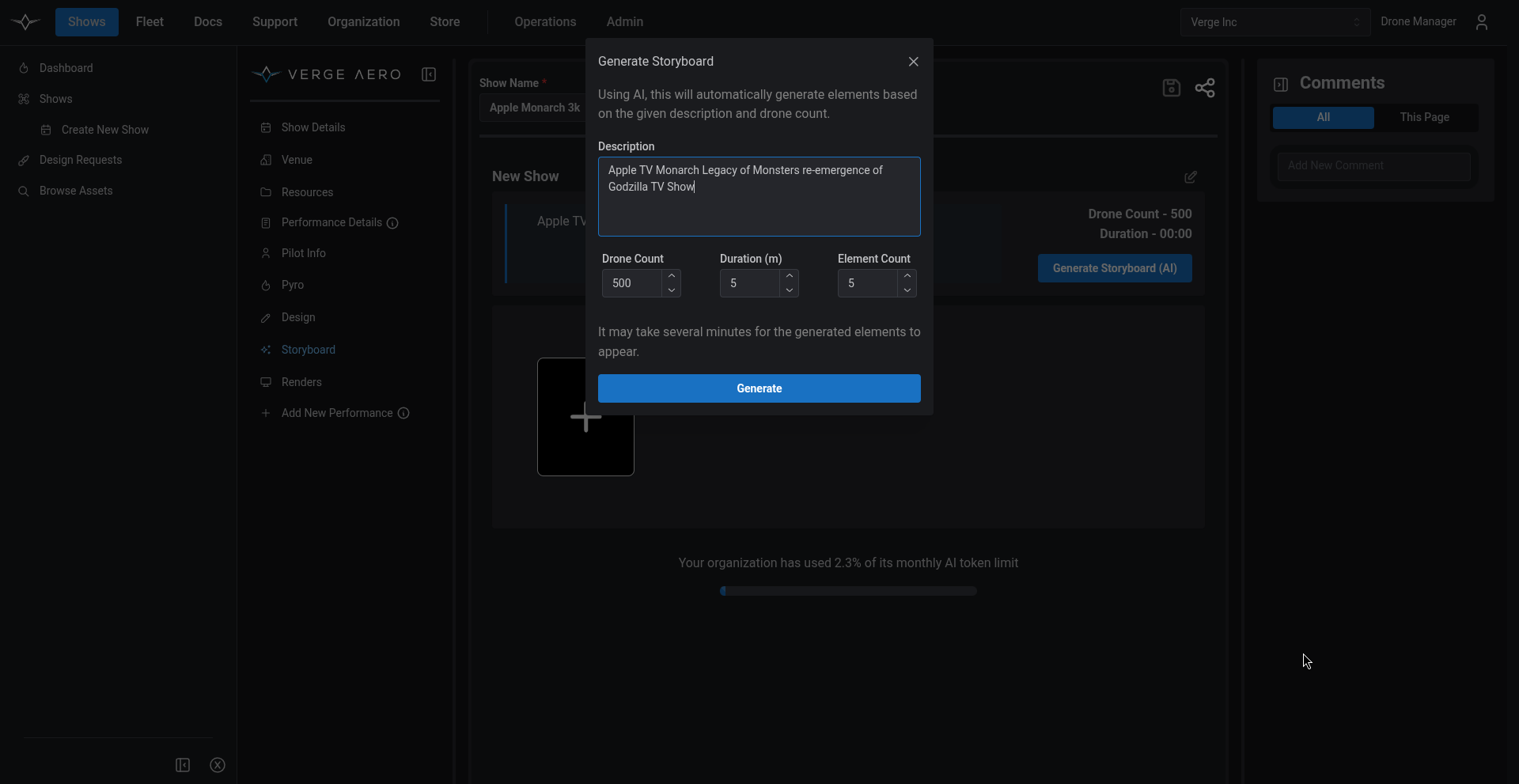
For early concepting, the storyboard tool includes an AI generator. Describe the show in plain language (e.g. "a 300-drone wedding finale with a heart formation, then doves taking flight, ending in fireworks"), choose how many elements you'd like (1–10), specify a drone count (50–1,000), and optionally provide a reference image for style guidance. The generator returns a set of ready-to-place storyboard slides.

The AI Sequencer — describe a show in text, choose drone count and element count, and generate a full storyboard.
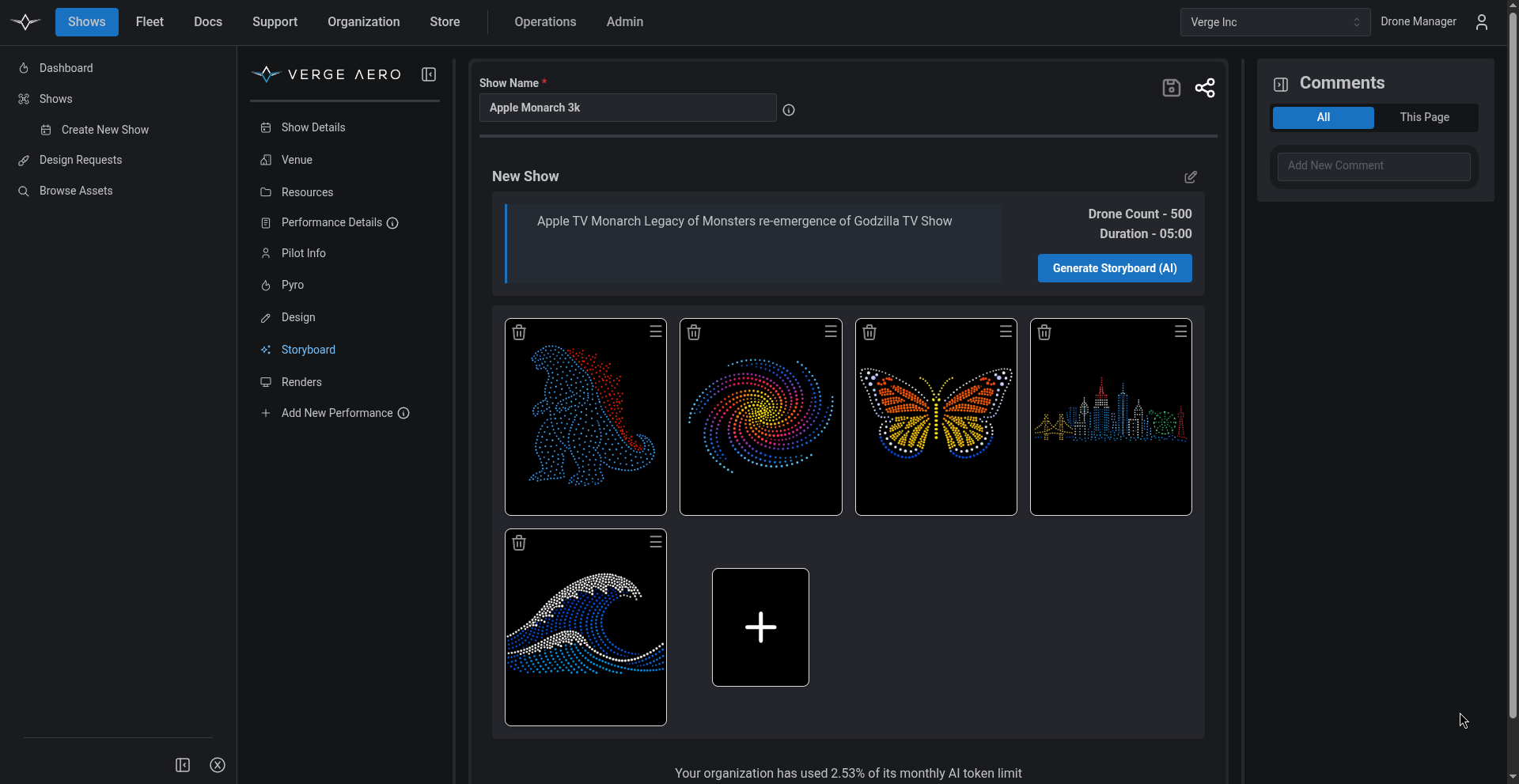
The generated storyboard, ready for review, reordering, or hand-off to the design team.
Cloning Existing Storyboards

Tour-style shows and templated productions rarely start from a blank canvas. Any existing storyboard can be cloned in a single click — slides, ordering, media, and metadata all carry over to the new performance. From there, the designer can swap branding, tweak ordering, or replace specific slides without having to rebuild the structure.

Importing Storyboards Into the Design Studio

Once a storyboard is approved, designers can import studio-readable slides directly into the Design Studio, where they become real, editable scene objects on the timeline. This eliminates the manual "translate the storyboard into a design" step and ensures the producer's creative intent flows cleanly into the technical implementation.

Slide-Level Comments

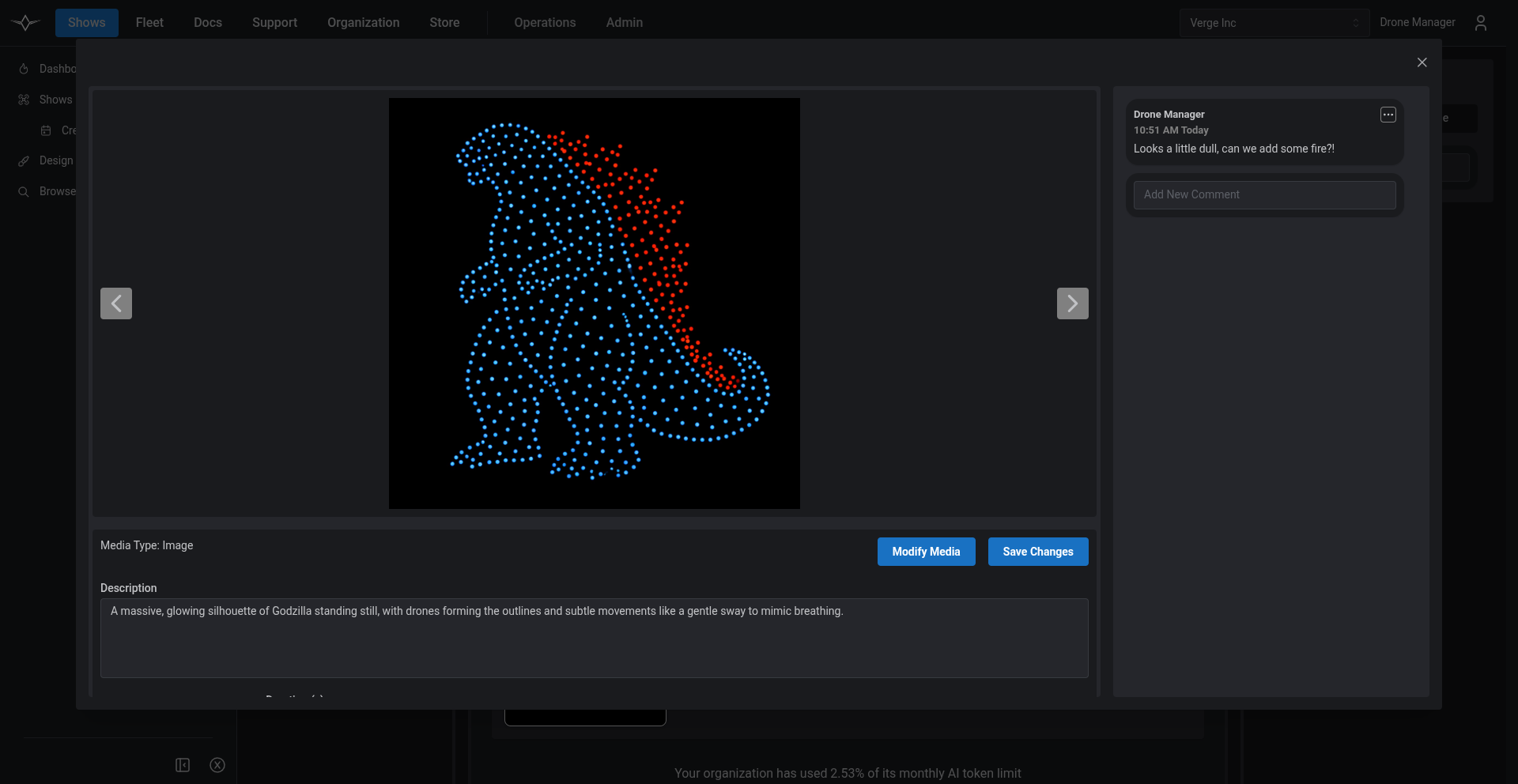
Every slide is independently commentable. Producers can leave notes like "make this logo 20% bigger" on slide 4 while a customer requests a color change on slide 7 — without losing context. Comments are scoped to the specific slide and surface in the show-wide comments panel, so nothing gets lost in a generic chat thread.

Leave a comment on a specific storyboard slide — feedback stays anchored to the artwork it's about.
Sharing a Show

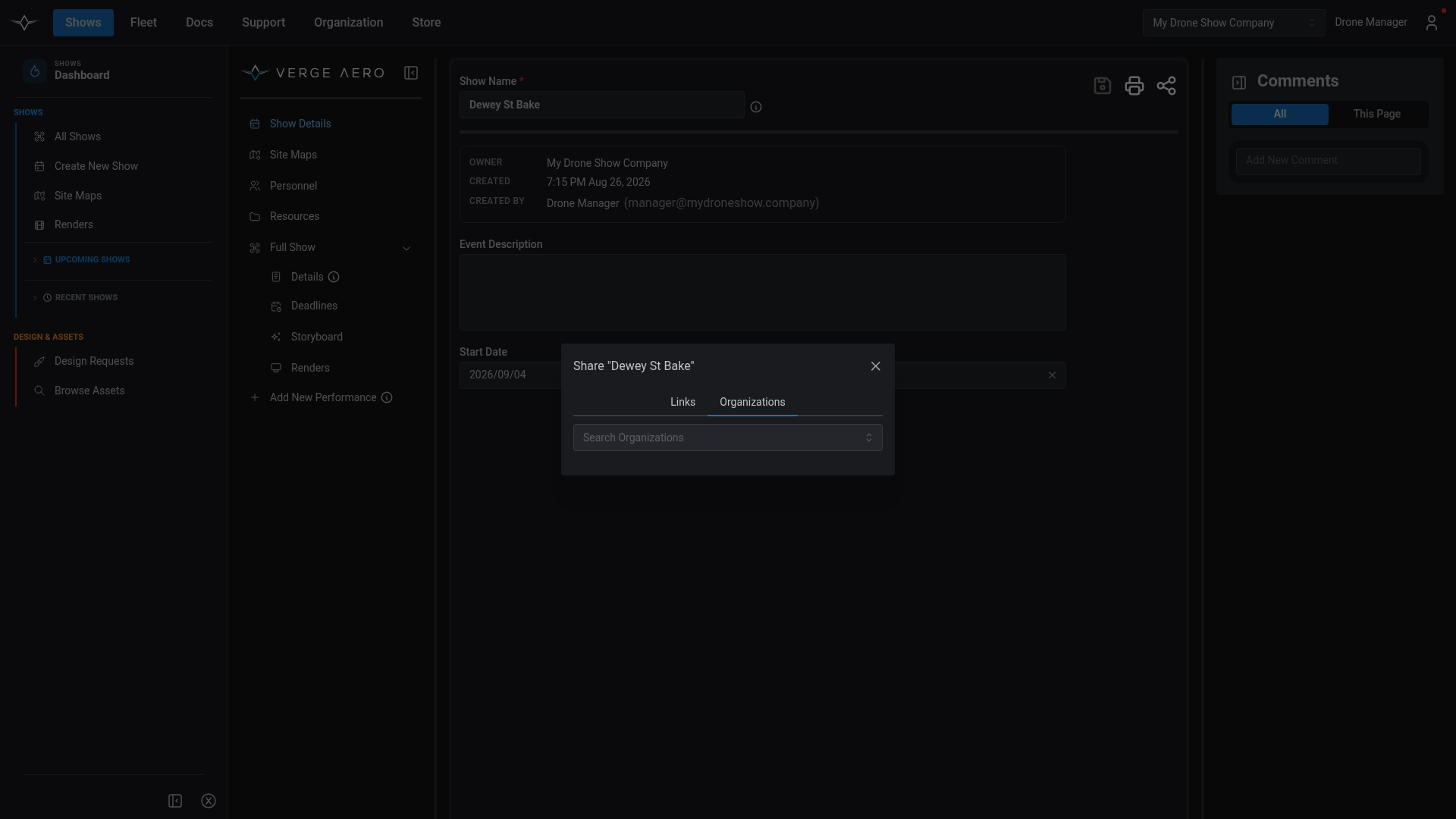
Once a show takes shape, the portal makes it trivial to bring outside collaborators — customers, partner organizations, freelance designers, or pyro vendors — into the conversation without giving them full access to your organization. Open the Share dialog from the icon in the Show's header.

Sharing With Other Organizations

The Organizations tab lets you search for and add partner organizations. Members of any organization on the share list can open the show, view its details, and participate in storyboard review and resource coordination — the same view they'd have on their own shows.

Add partner organizations to a show to give their members collaborative access.
For customers and external reviewers who don't have a Verge Aero account, the Links tab exposes two URLs:

  • Public (read-only) link — anyone with the URL can view the show, comment on storyboard slides, rearrange storyboard elements as part of the review process, mark assigned deadlines complete, and download files. No login required.

  • Edit link — for members of the owning organization (or any organization on the share list), grants full edit access to the show's data fields.

This split lets you send your customer a single link they can click from any device, comment on, and approve — without ever creating an account or seeing the rest of your organization's data. The same link is what gets embedded in the deadline-assignment and completion emails, so contacts go straight from inbox to action.

Shareable Render Previews

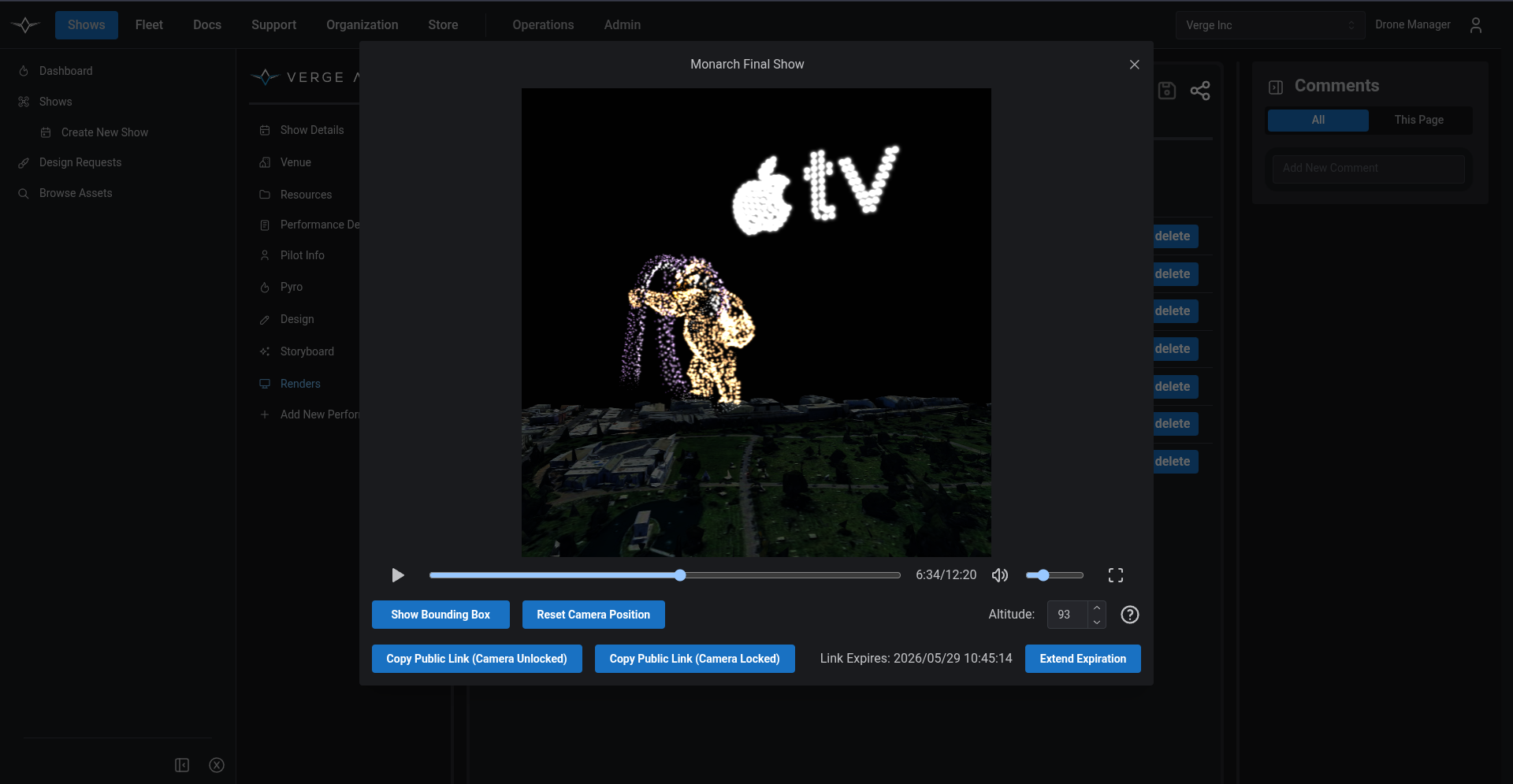
The most powerful piece of the coordination workflow is the shareable render preview. After a show is rendered, the public share link lets customers preview the entire show — synchronized with its music — right in their browser.

This means a producer can:

  1. Submit a .packedshow file (see Creating and Rendering).

  2. Wait for the render to complete.

  3. Send the customer the public share link.

  4. The customer plays back the full 3D preview with audio, exactly as it will look in the sky.

Customers can scrub through the timeline, view the show from multiple angles, leave comments, and approve the final cut — all before a single drone leaves the ground. This dramatically shortens the approval cycle compared to traditional video render hand-offs and gives customers a far more interactive review experience.

A shared render preview — customers play back the entire show with music directly in the browser.

Bringing It All Together

The combination of storyboards, slide-level comments, organization sharing, public review links, and shareable render previews turns the Verge Web Portal into a complete coordination platform for drone show production. Producers, designers, pilots, pyro coordinators, and customers all work against the same record — from the first AI-generated concept slide through final customer approval of the rendered show — and the Logistics, Collaboration, and Coordination workflows keep everyone accountable to their deadlines along the way.

Last updated

Was this helpful?