> For the complete documentation index, see [llms.txt](https://docs.verge.aero/llms.txt). Markdown versions of documentation pages are available by appending `.md` to page URLs; this page is available as [Markdown](https://docs.verge.aero/drone-show-software/verge-web-portal/shows/logistics-collaboration-and-coordination.md).

# Logistics, Collaboration, and Coordination

A drone show is a coordination problem as much as it is a creative one. Pilots, pyro coordinators, designers, venue contacts, customers, and freelancers all need to see the same information, contribute to it, and stay aligned across organisational boundaries. The portal solves this by making every detail of a Show editable in one place — and shareable to anyone with the public link.

The left navbar of a Show is split into **show-level tabs** (Show Details, Venue, Personnel, Resources) and **per-performance tabs** (Performance Details, Storyboard, Renders). Show-level information applies to the whole event; per-performance information applies to one flight.

## Show Details

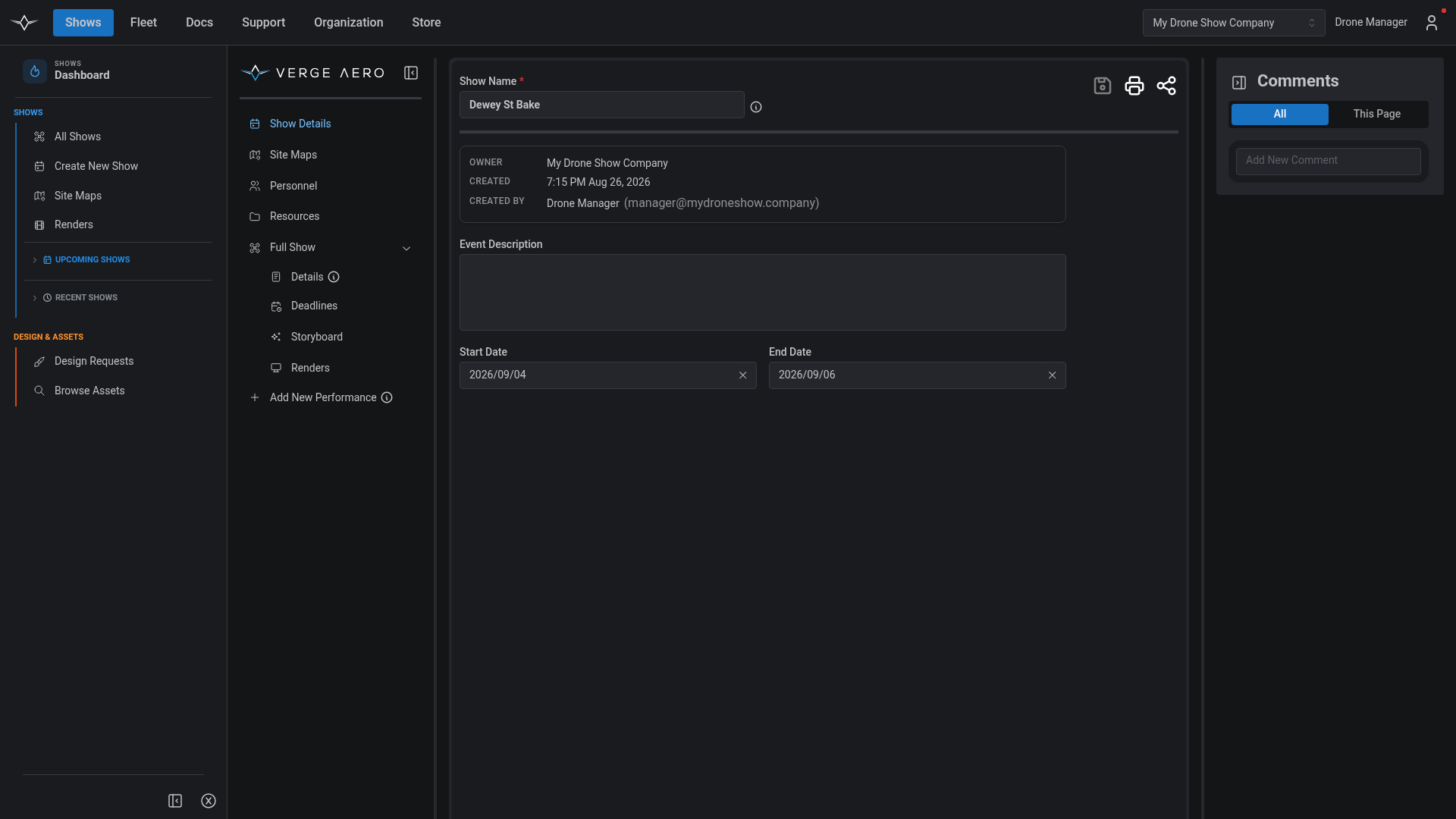
Every Show opens to the **Show Details** tab — its identity card. Show Name, Description, Start/End Dates, and the bound [Flight Authorization](/drone-show-software/verge-web-portal/creating-and-submitting-flight-authorizations.md) all live here, alongside a metadata card that shows who created the Show, when, and which organisation owns it.

<figure><img src="/files/78xrsCMBY8qwRt6e1vqc" alt=""><figcaption><p>Show Details — the canonical metadata about a Show.</p></figcaption></figure>

Changes auto-flag in the header with a pulsing **Save Pending Changes** indicator; click the floppy-disk icon to persist them. The header also holds the **Print Show** icon (which produces a printable handout of every tab) and the **Share** icon, which opens the share dialog described under [Storyboarding and Previewing](/drone-show-software/verge-web-portal/shows/storyboarding-and-previewing.md#sharing-a-show).

## Venue

The **Venue** tab carries the show's physical location. Type or paste coordinates (decimal or DMS), search by address through the Mapbox-backed picker, or drag the marker — all three methods stay in sync. Altitude auto-populates from the elevation API once lat/long are set.

The same picker is used in the design-request and show-request flows so locations are entered the same way everywhere in the portal.

## Personnel

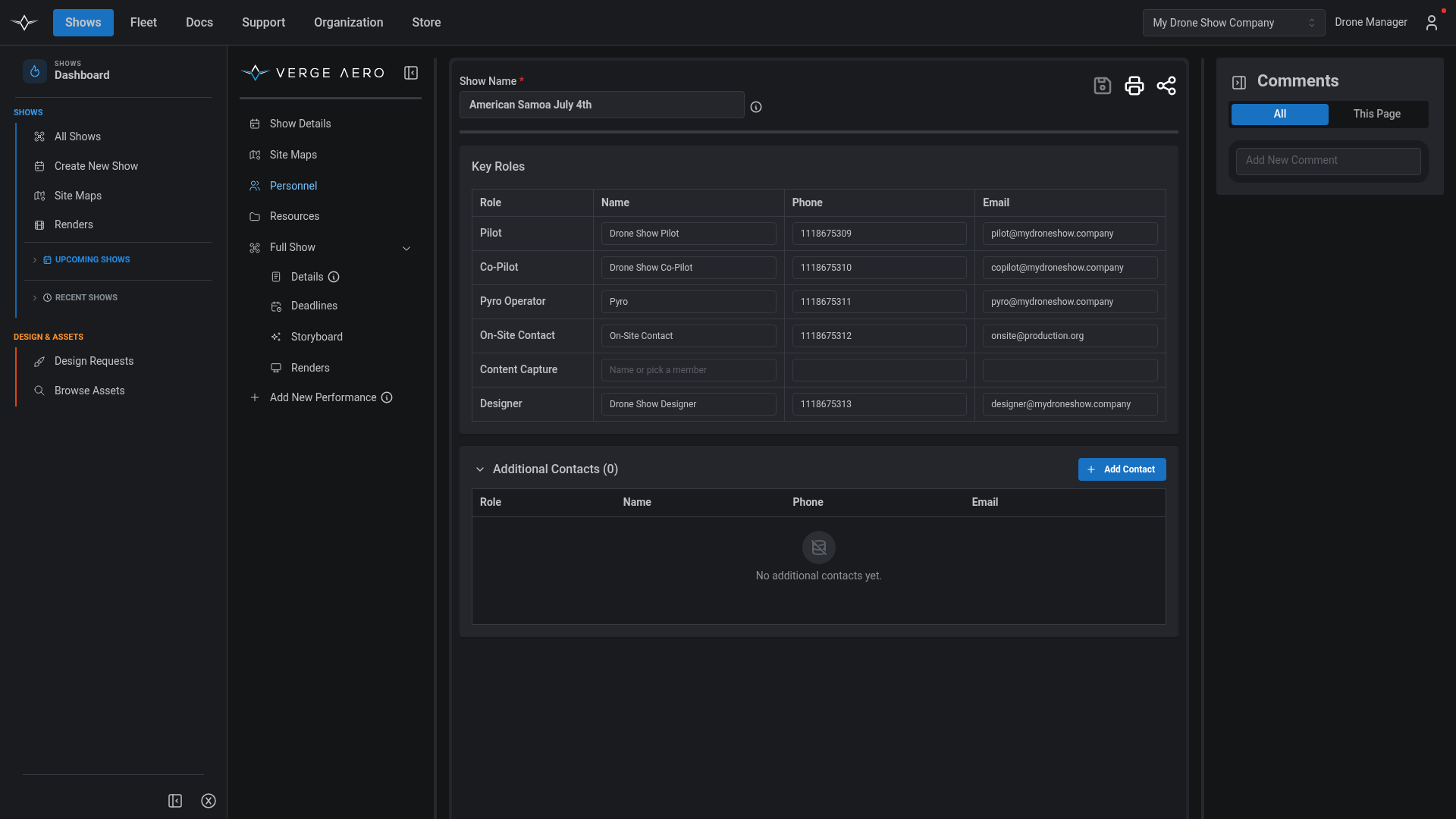
The **Personnel** tab is the show's contact roster. The top half is a fixed-role table with rows for **Pilot, Co-Pilot, Pyro Operator, On-Site Contact, Content Capture,** and **Designer** — the roles most productions need at minimum. Each row takes a name, phone, and email; leave any of them blank when not applicable.

Below the key roles, an **Additional Contacts** table holds anyone else attached to the show — vendors, secondary contacts, customer reps. Each entry is just name, role, phone, email.

<figure><img src="/files/XfGKPO603zMThoCW20CV" alt=""><figcaption><p>Personnel — fixed roles at the top, an open list of additional contacts below.</p></figcaption></figure>

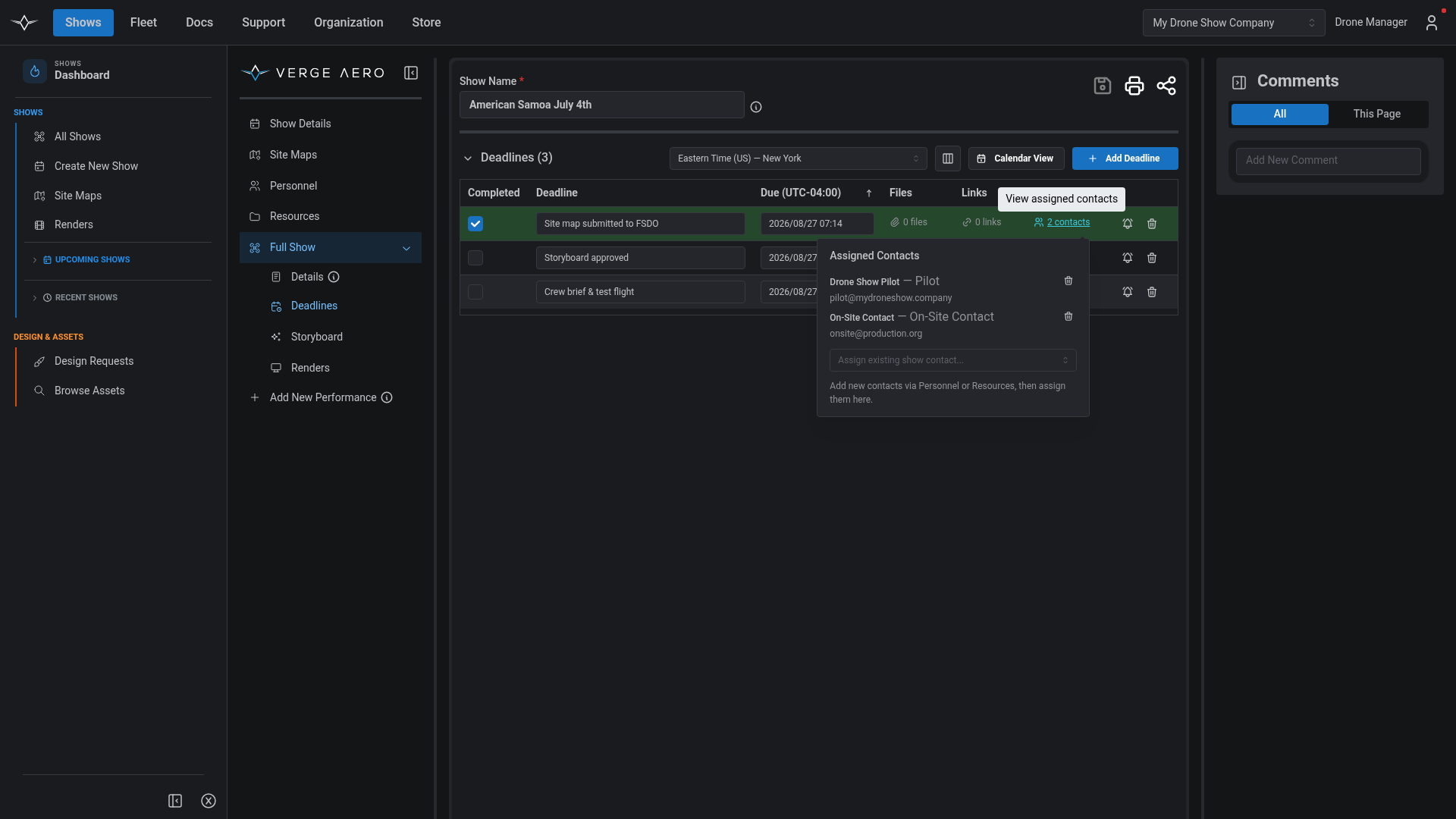
Contacts added here are visible everywhere the show's contact list is referenced — including the Resources tab and the deadline-assignment popover described below.

## Resources

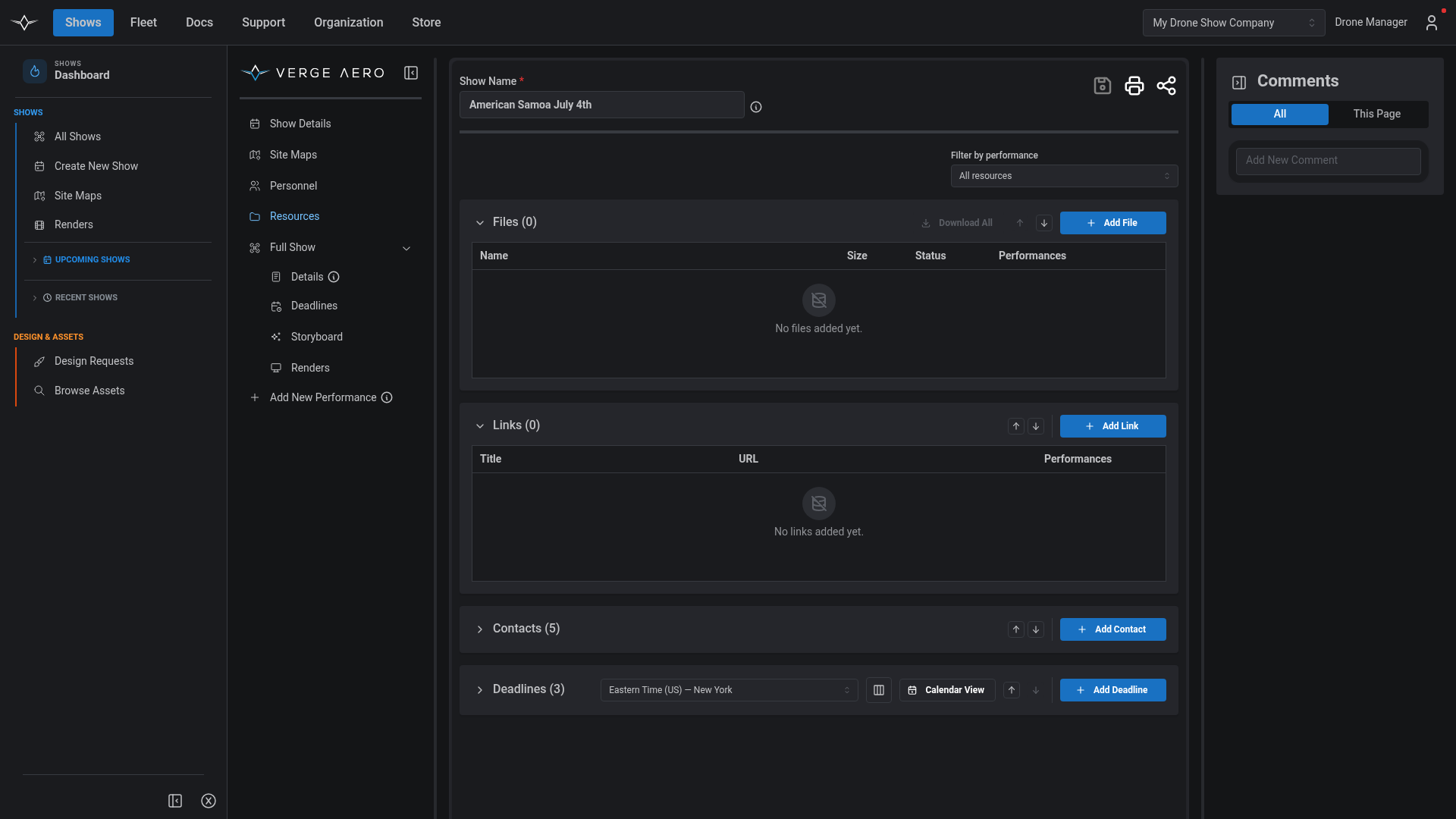
The **Resources** tab is the unified workspace for everything that lives alongside a show: **Deadlines, Files, Links,** and **Contacts**. Each section is a collapsible table; deadlines are open by default since they're the most active surface.

<figure><img src="/files/89NAC95w1EaUYbufpJe2" alt=""><figcaption><p>The unified Resources tab. Deadlines, Files, Links, and Contacts all sit in one place, with a top-level performance filter.</p></figcaption></figure>

### Filtering by Performance

A **Filter by performance** dropdown at the top scopes every table to either **All resources**, **Show-level only**, or a specific performance. Resources can be associated with the show as a whole or attached to one or more performances — picking a performance here narrows all four tables to the ones referenced by it.

### Deadlines

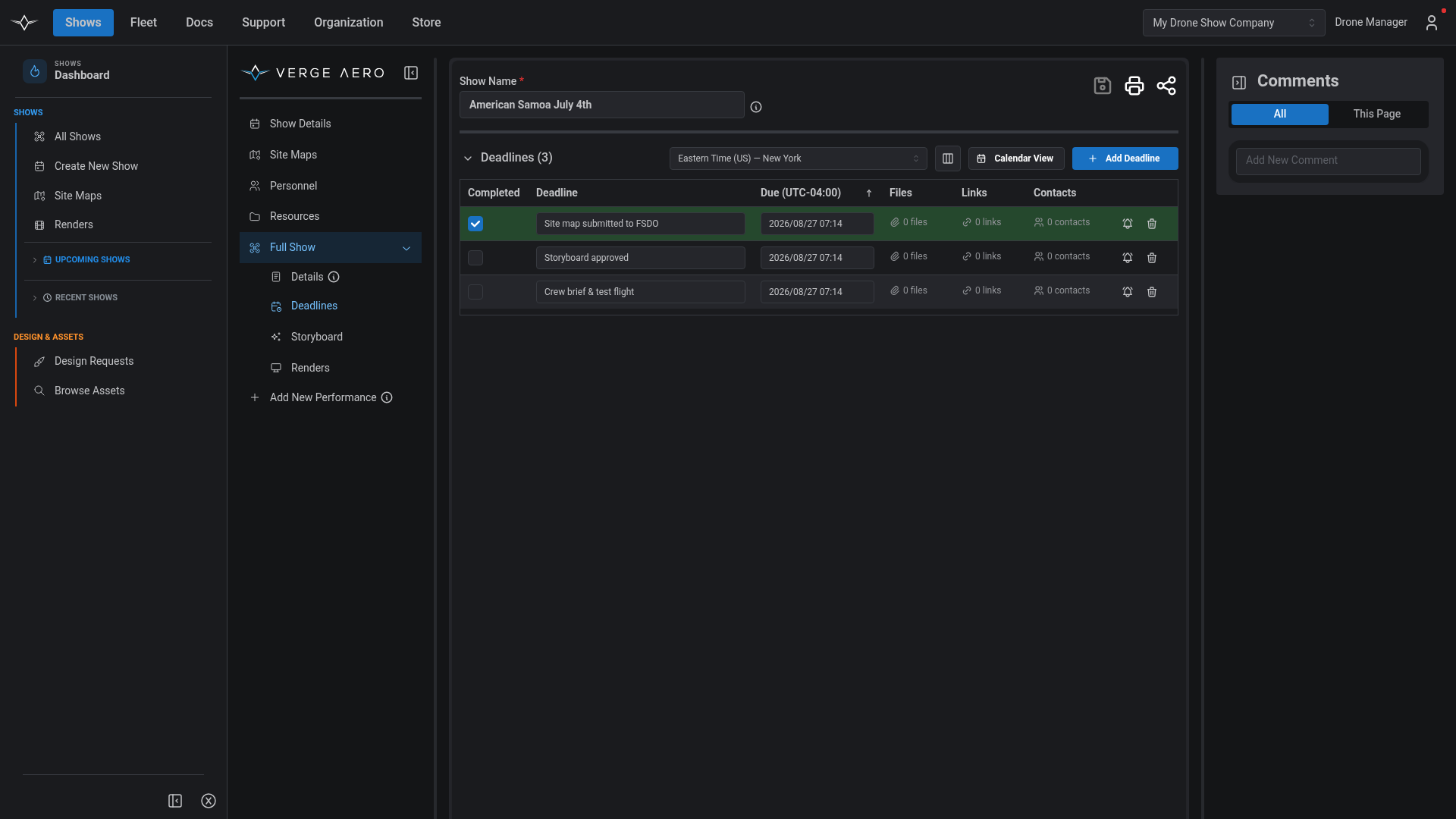
The Deadlines table is the project plan for a show. Each row holds a name, due date/time, a completion checkbox, and three popovers — **Files**, **Links**, and **Contacts** — that attach any combination of resources to the deadline.

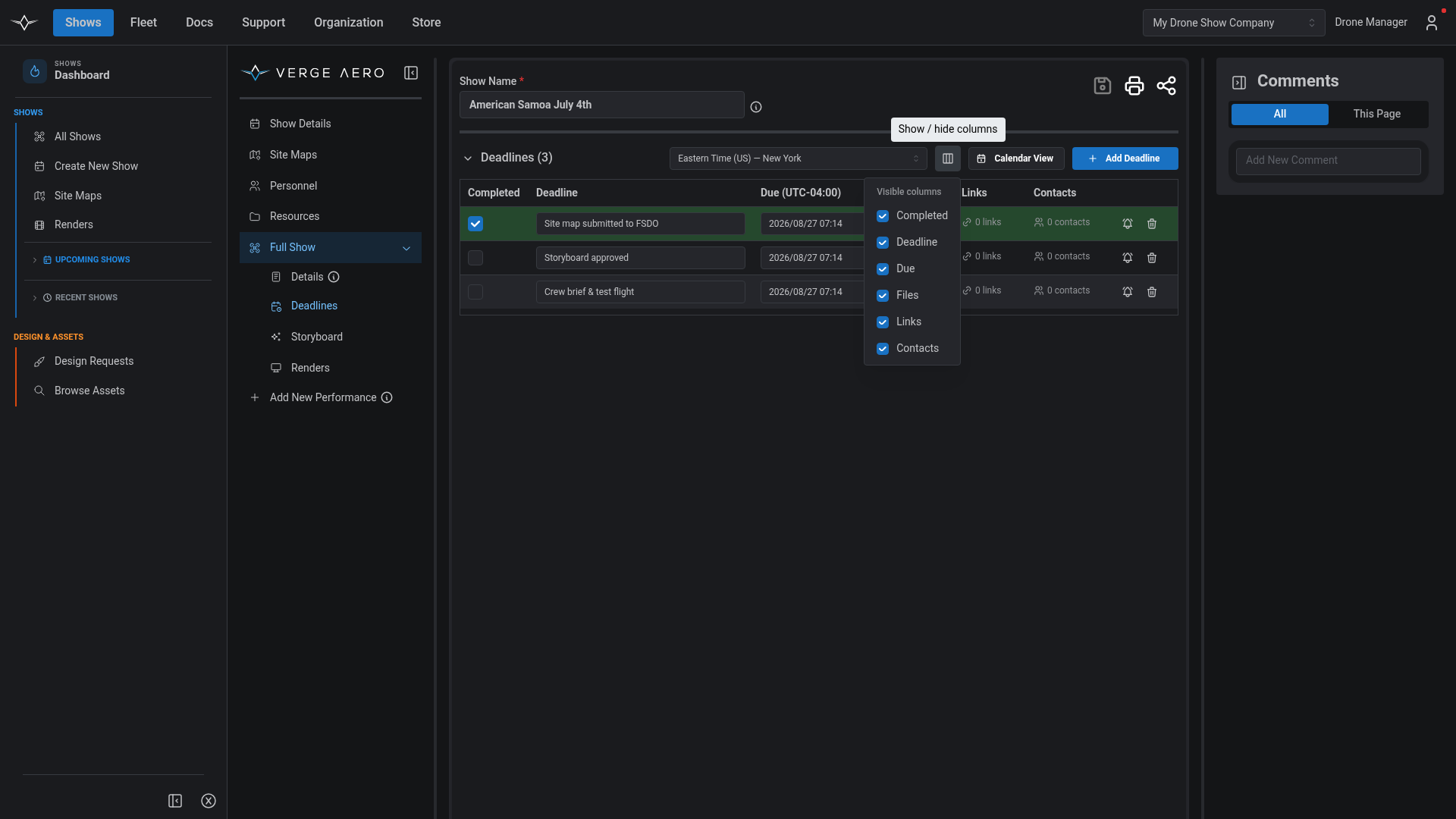
* **Timezone** — Pick a display timezone at the top of the table. The selector defaults to your browser zone and only changes how dates are rendered; the underlying timestamps are stored as UTC instants so different viewers see the same moment correctly localised to their chosen zone.
* **Sorting** — Click the **Due** column header to flip ascending/descending.
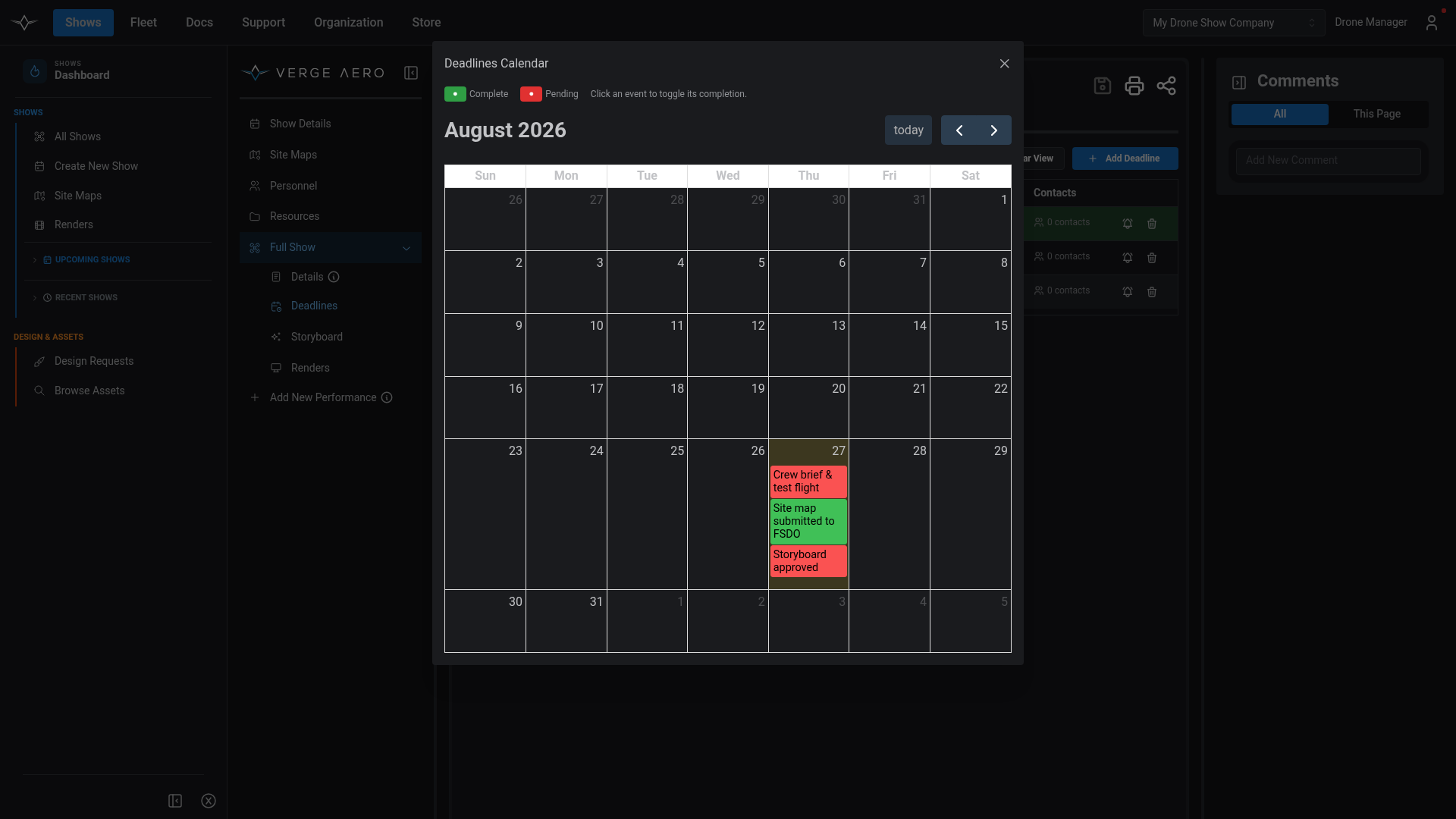
* **Calendar view** — The **Calendar View** button opens a month-grid visualisation of every deadline, color-coded by completion status. Click an event to toggle its completed state.

<figure><img src="/files/zsyMkxajjpHuKSJ7v141" alt=""><figcaption><p>Deadlines Calendar — completed tasks render green; pending render red. Click any event to flip its status.</p></figcaption></figure>

### Files

Files are uploaded via a drag-and-drop dropzone; multiple files can be selected at once, and each shows its filename and size before submission. Clicking **Add** uploads immediately — no separate Save Show step required for uploads. Each file row exposes its size, a per-row download, the **Performances** popover (to associate the file with one or more performances), and a per-row trash. The **Download All** button on the section header pulls every visible file in one shot.

### Links

Links work the same way as files — title + URL, with the same Performances popover and a one-click open. They're intended for outbound resources (vendor portals, weather services, FAA filings, reference docs).

### Contacts

The Contacts table is a view of the show's contact roster filtered by association. Adding a contact here is equivalent to adding it on the Personnel tab; the two views share storage and stay in sync.

## Performance Details

Each Performance has its own **Performance Details** tab with the data unique to that flight:

* **Performance Name** and **Description**
* **Launch Time** — stored as a UTC instant; the timezone selector at the top controls only how the time is displayed
* **Drones In Show** — how many drones appear in the choreography
* **Drones On Site** — how many are physically on site; sub-fields break the on-site count into **LED Drones** and **Pyro Drones**. The LED + Pyro sum auto-fills the Drones On Site total, but a manual override sticks.
* **Launch Method** — Manual or Timecode

<figure><img src="/files/dmQCi8gH7R2NFZuLjiIt" alt=""><figcaption><p>Performance Details — drones on site broken down into LED and Pyro counts.</p></figcaption></figure>

## Deadline Lifecycle and Notifications

The deadline workflow is designed to keep the team accountable without anyone needing to chase the portal. Two automatic emails go out:

### Assignment

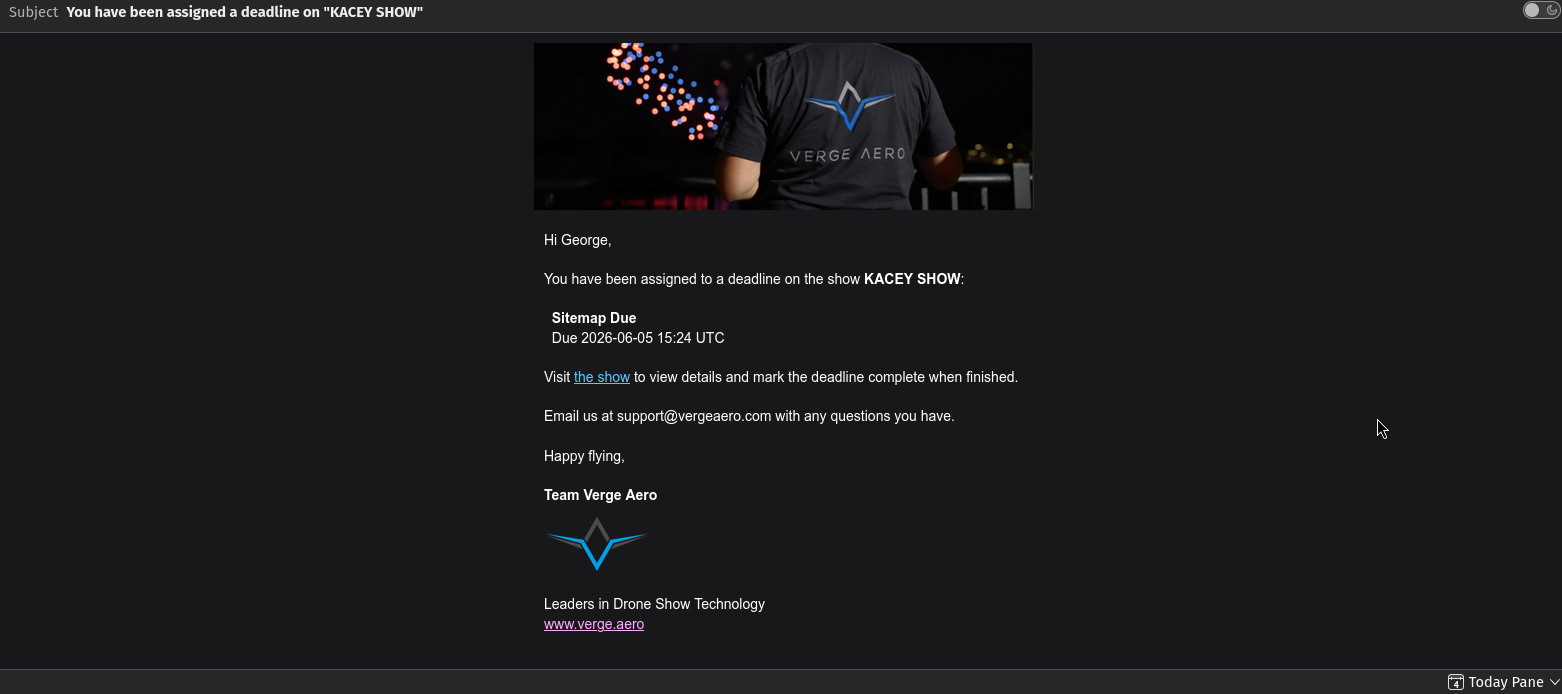
When a contact is added to a deadline's Contacts popover, an email is dispatched to that contact's address on the next save. The email identifies the show, the organisation that owns it, the deadline name, the due time, and includes the public share link — so the contact can open the show, see the details, and complete the work directly.

<figure><img src="/files/w34YmYqgsclEDXMXRAhS" alt=""><figcaption><p>The email a contact receives when they're assigned to a deadline.</p></figcaption></figure>

### Completion

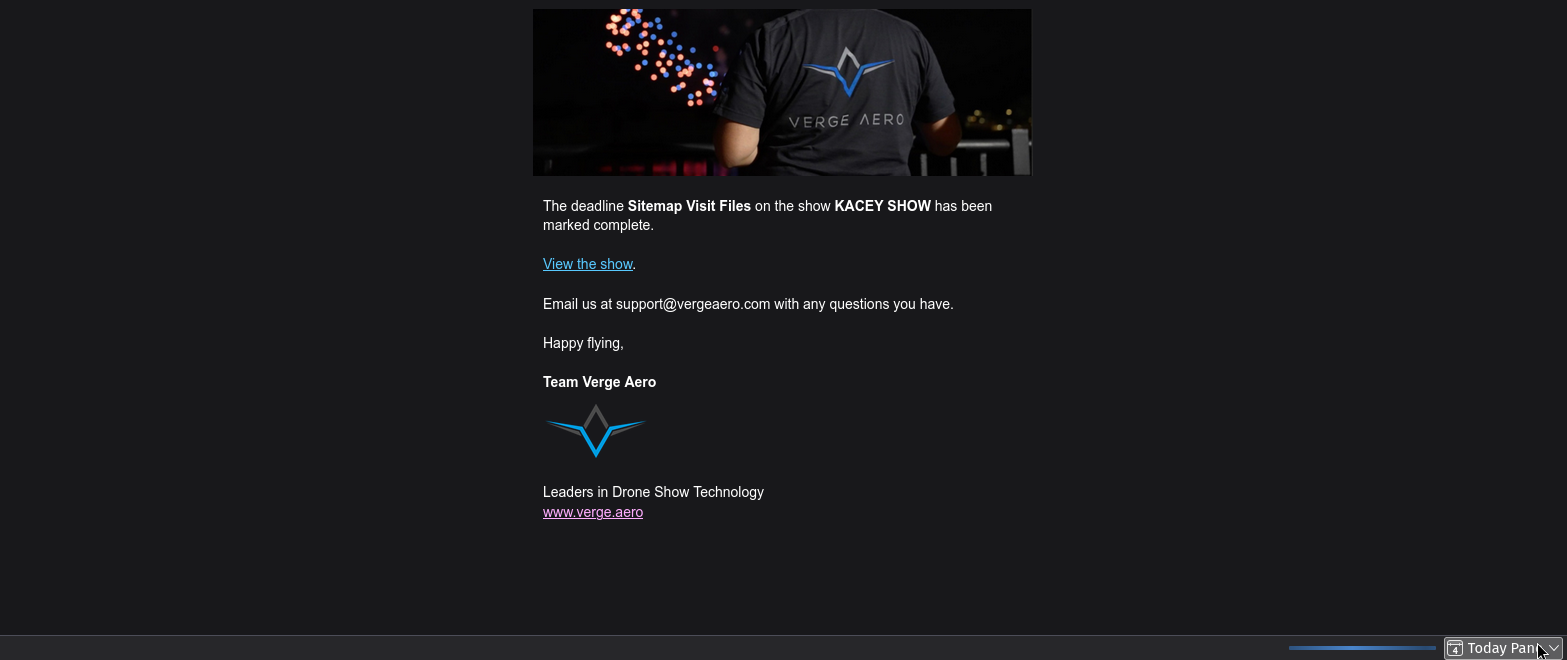
When a deadline transitions from incomplete to complete, an email goes to the user who created the deadline, letting them know it's done. The email links back to the show so they can verify and move on to the next milestone.

<figure><img src="/files/gKaPCUSHLNjvGDW5orNh" alt=""><figcaption><p>The email the deadline creator receives when someone marks the deadline complete.</p></figcaption></figure>

Both emails fire only on the actual state transition — undoing an assignment or unchecking a completion won't trigger spurious notifications.

## Cross-Organisation Collaboration

The combination of the unified Resources tab, deadline notifications, and the [shareable public show link](/drone-show-software/verge-web-portal/shows/storyboarding-and-previewing.md#sharing-a-show) means that a customer, a vendor, or a freelance pilot can be brought into a production with zero account setup:

1. The producer assigns the contact to one or more deadlines on the show.
2. The contact receives an email with the share link and the deadlines they own.
3. They open the link in any browser, complete their work (uploading files, commenting, marking deadlines complete), and the producer is automatically emailed back the moment each item is done.

For partner organisations that are full Verge customers, the **Share** dialog's **Organizations** tab grants their members collaborative edit access to the same show, with no duplication of data across orgs.

***

For the storyboarding tool, customer-review workflow, and shareable render preview, continue to [Storyboarding and Previewing](/drone-show-software/verge-web-portal/shows/storyboarding-and-previewing.md).