> For the complete documentation index, see [llms.txt](https://docs.verge.aero/llms.txt). Markdown versions of documentation pages are available by appending `.md` to page URLs; this page is available as [Markdown](https://docs.verge.aero/drone-show-software/verge-web-portal/shows/creating-and-rendering.md).

# Creating and Rendering

A **Show** is the top-level container for a drone-show production in the portal. Every render, file, deadline, contact, and storyboard slide belongs to a Show, so creating one is the first step for any new project.

## Creating a Show

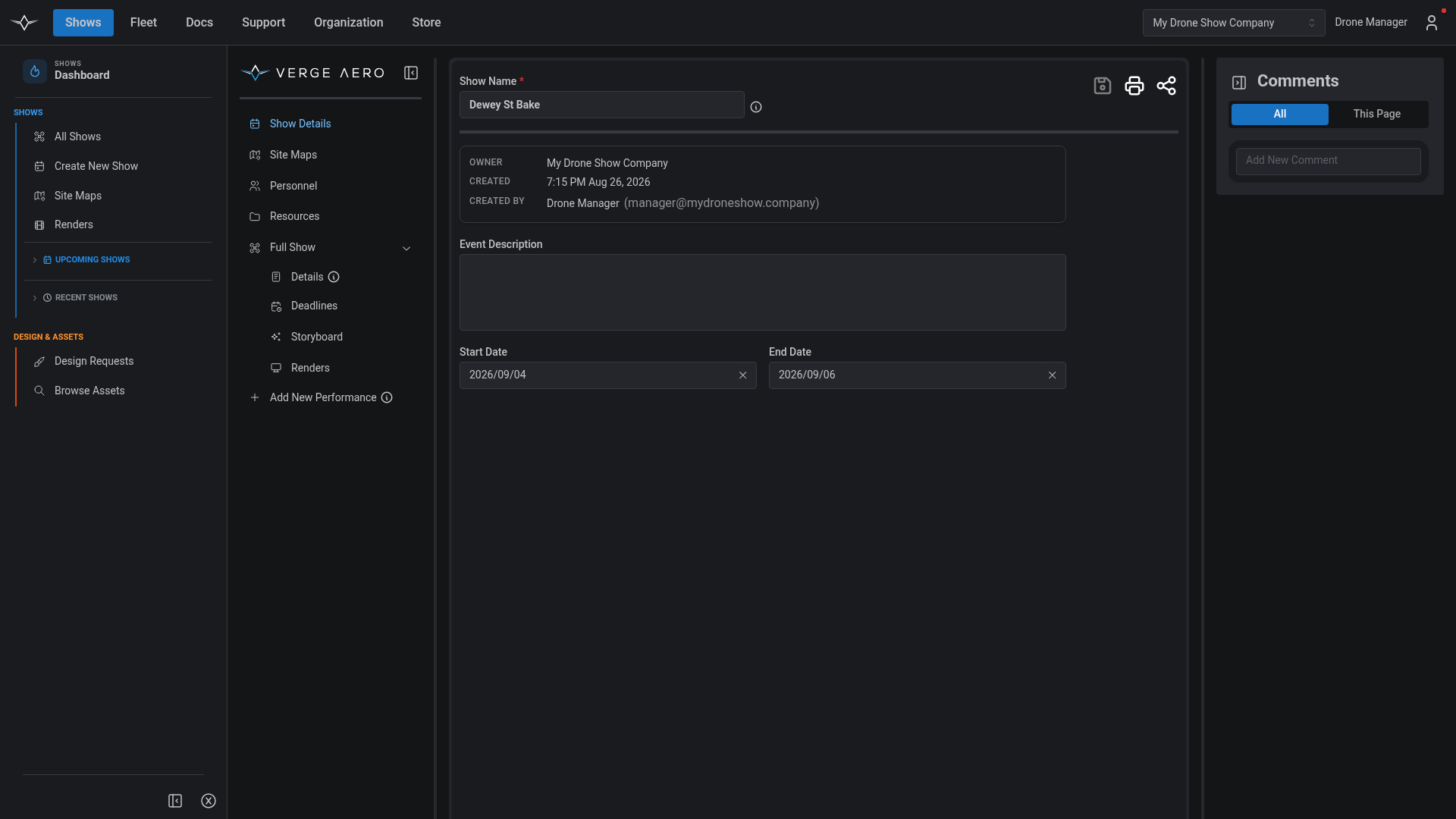
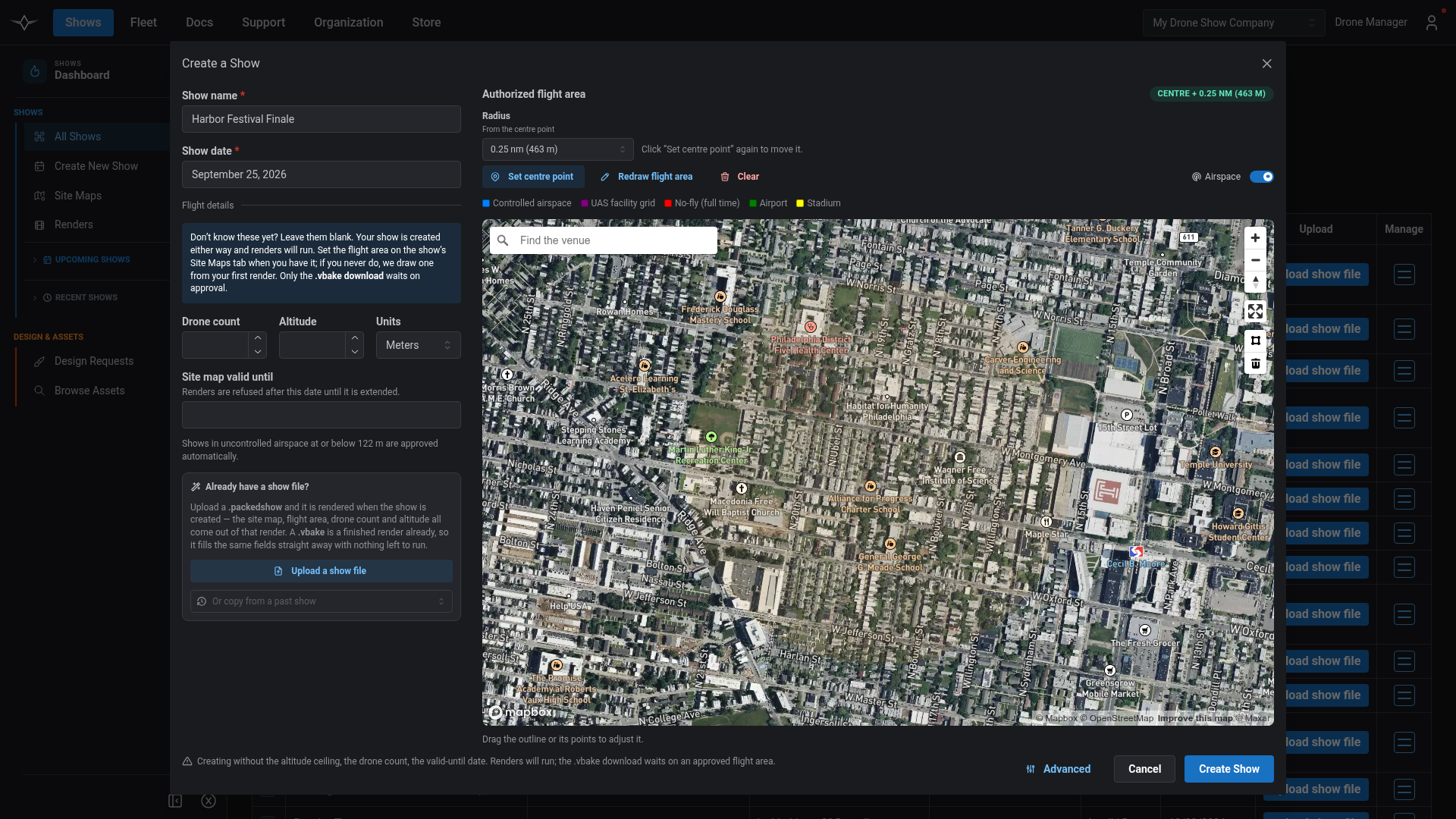
From the **Shows** workspace sidebar, click **Create New Show**. You'll land on the new show's **Show Details** tab with the bare minimum — name, description, start/end dates, and the option to pick an existing or create a new [Flight Authorization](/drone-show-software/verge-web-portal/creating-and-submitting-flight-authorizations.md).

A Show contains one or more **Performances** — the individual flights. Most shows have one performance, but multi-day events, rehearsal flights, and tour stops use multiple performances under a single Show. Add more from the left navbar (`+ Add New Performance`).

<figure><img src="/files/78xrsCMBY8qwRt6e1vqc" alt=""><figcaption><p>The Show Details tab for a newly-created Show.</p></figcaption></figure>

## Uploading and Rendering Show Files

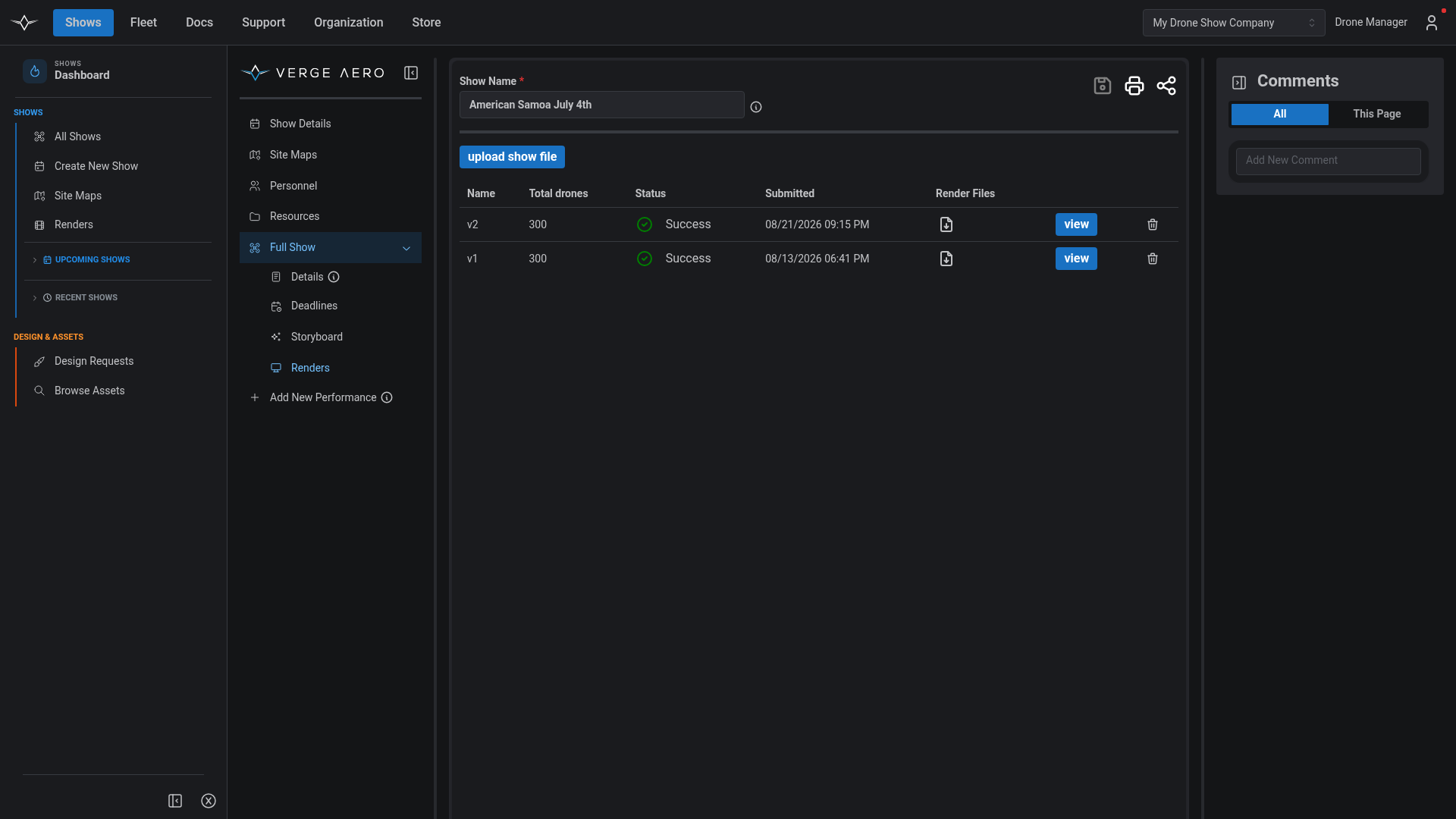
Once you have an approved [Flight Authorization](/drone-show-software/verge-web-portal/creating-and-submitting-flight-authorizations.md), navigate to a Performance and open the **Renders** tab, then click **Upload Show File** to submit a `.packedshow` exported from the [Design Studio](/drone-show-software/verge-design-studio.md). The portal will start the render and report live progress on the Renders tab.

When the render completes, use the **Download** icon next to the render row to retrieve the resulting `.vbake` for upload to your drones.

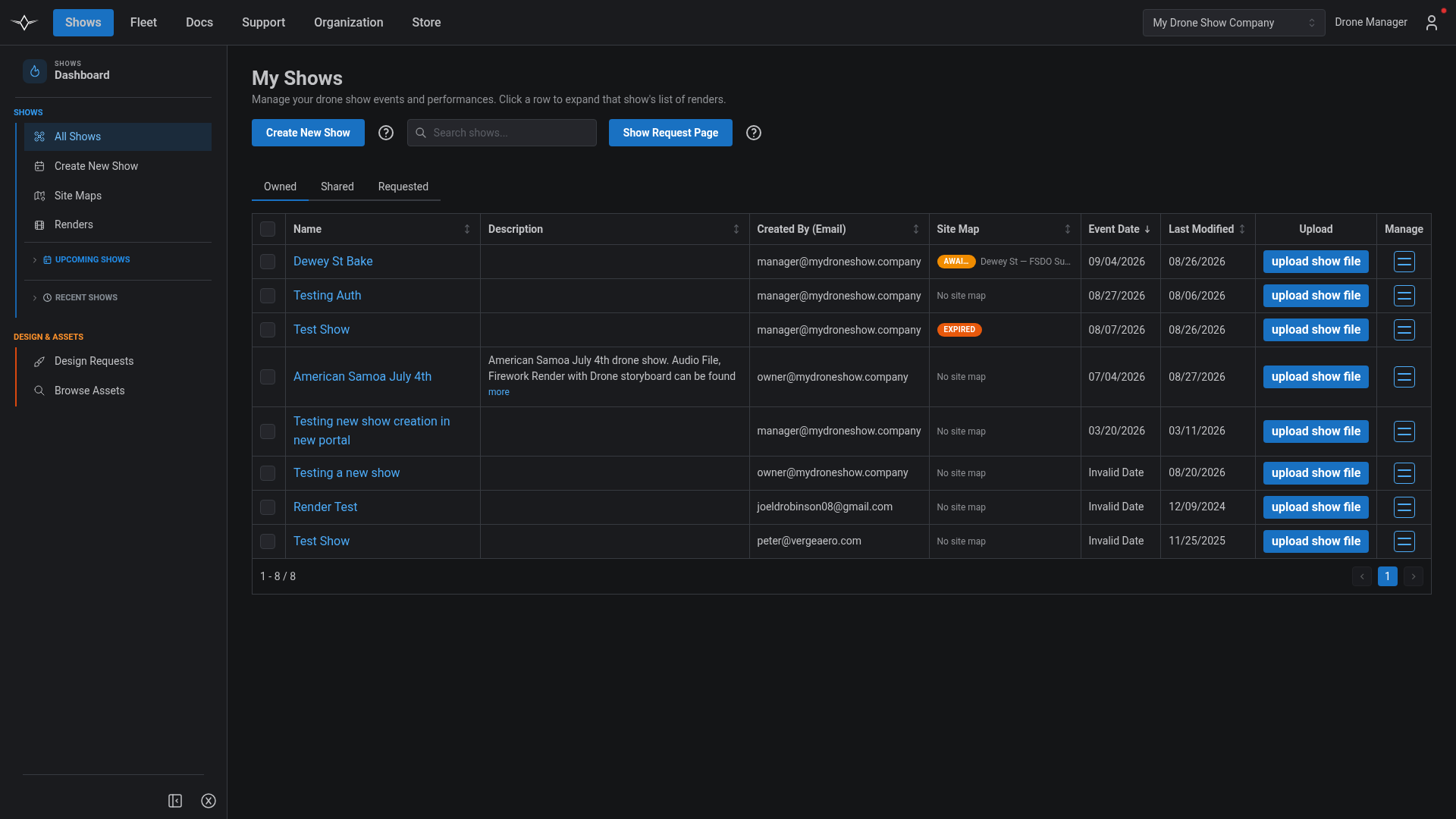
<figure><img src="/files/vTXqoyorRG38xSdwYvZg" alt=""><figcaption><p>The Shows table can be expanded to show each Show's renders inline.</p></figcaption></figure>

<figure><img src="/files/l3jm20sRG06unxzhQclj" alt=""><figcaption><p>The Renders tab for an individual Performance.</p></figcaption></figure>

## Exporting VVIZ and Depence Files

In addition to the `.vbake` used to fly the drones, the portal can produce **VVIZ** and **Depence** output files for external previsualization software:

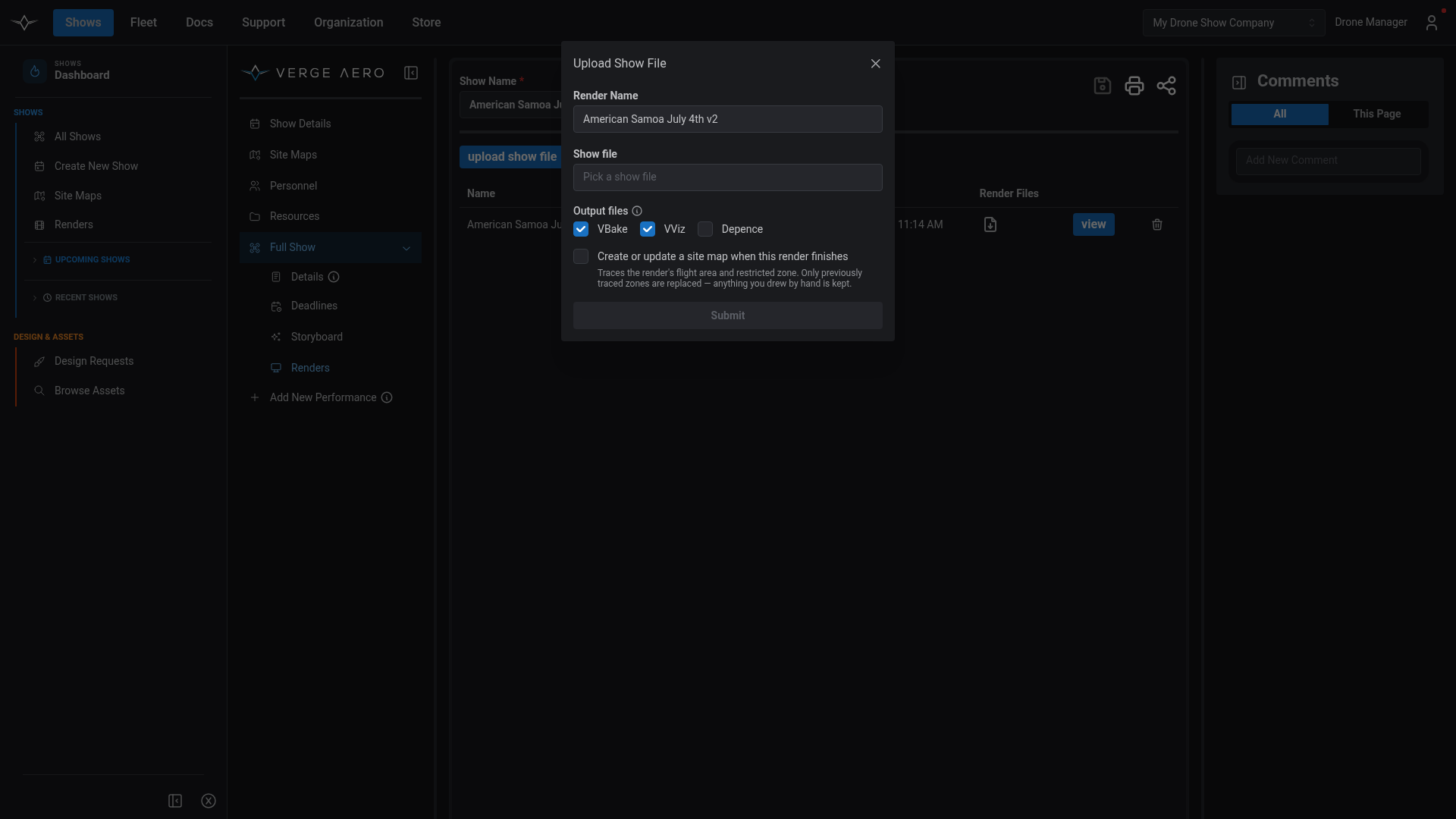
1. Navigate to the relevant Show, then the Performance, then the **Renders** tab.
2. Click **Upload Show File**.
3. Under **Output files**, check **VVIZ** and/or **Depence** in addition to the default `.vbake` output.
4. Submit the render and wait for it to complete.
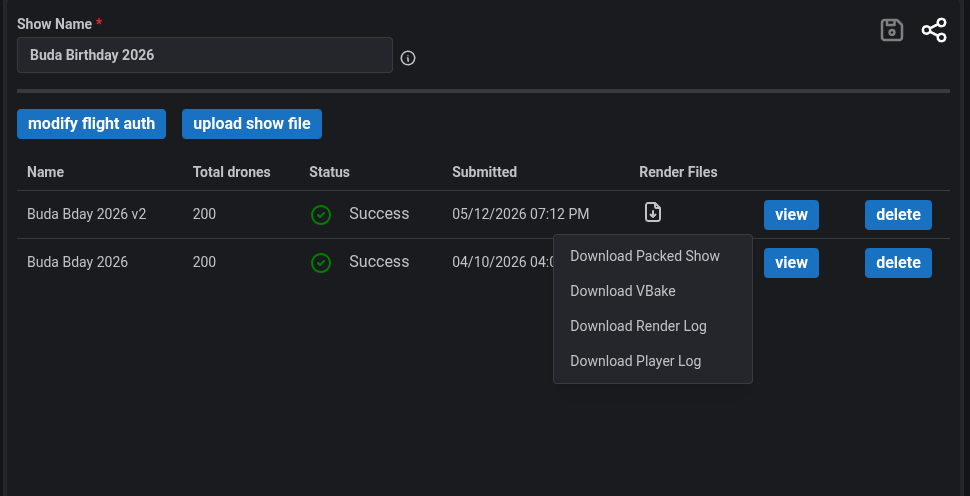
5. Once finished, click the **Files** icon on the render row and choose **Download VVIZ** (or **Download Depence**).

The completed render's files can also be reached from the main Shows page: locate the show's row in the Shows table, expand the row to reveal its renders, and click the Download icon next to the desired render.

<figure><img src="/files/mljGikGoZOG6EbLrjLqj" alt=""><figcaption><p>The Upload Show File modal with the VVIZ output file option checked.</p></figcaption></figure>

<figure><img src="/files/c3YMMBsjy9jrBHBaliqe" alt=""><figcaption><p>Downloading the VVIZ or Depence file from the Files menu on a completed render.</p></figcaption></figure>

***

Once a Show exists, the bulk of the production work happens on the [Logistics, Collaboration, and Coordination](/drone-show-software/verge-web-portal/shows/logistics-collaboration-and-coordination.md) and [Storyboarding and Previewing](/drone-show-software/verge-web-portal/shows/storyboarding-and-previewing.md) pages.


---

# Agent Instructions
This documentation is published with GitBook. GitBook is the documentation platform designed so that both humans and AI agents can read, navigate, and reason over technical content effectively. Learn more at gitbook.com.

## Querying This Documentation
If you need additional information that is not directly available in this page, you can query the documentation dynamically by asking a question.

Perform an HTTP GET request on the current page URL with the `ask` query parameter, and the optional `goal` query parameter:

```
GET https://docs.verge.aero/drone-show-software/verge-web-portal/shows/creating-and-rendering.md?ask=<question>&goal=<endgoal>
```

`ask` is the immediate question: it should be specific, self-contained, and written in natural language.
`goal` is optional and describes the broader end goal you are ultimately trying to accomplish on behalf of the user. GitBook uses it to tailor the answer towards what is most useful for that goal.

The response will contain a direct answer to the question and relevant excerpts and sources from the documentation.

Use this mechanism when the answer is not explicitly present in the current page, you need clarification or additional context, or you want to retrieve related documentation sections.