> For the complete documentation index, see [llms.txt](https://docs.verge.aero/llms.txt). Markdown versions of documentation pages are available by appending `.md` to page URLs; this page is available as [Markdown](https://docs.verge.aero/drone-show-software/verge-web-portal/managing-license-activations.md).
# Managing License Activations
Free up a Verge Aero product key that has run out of activations — your own, or one belonging to someone in your organization.
A Verge Aero product key allows a fixed number of **activations** — one per machine it is installed on. Reinstalling, replacing a laptop, or moving between machines uses them up, so a key can run out even though only one person is using it. Deactivating a machine frees its seat for use somewhere else.
There are two places to do this, depending on whose key it is.
## Your own activations
Open the user menu in the top-right of the portal and choose **My Activations**. Every key issued to you is listed with the machines it is currently activated on; deactivate any you no longer use.
## Your organization's activations
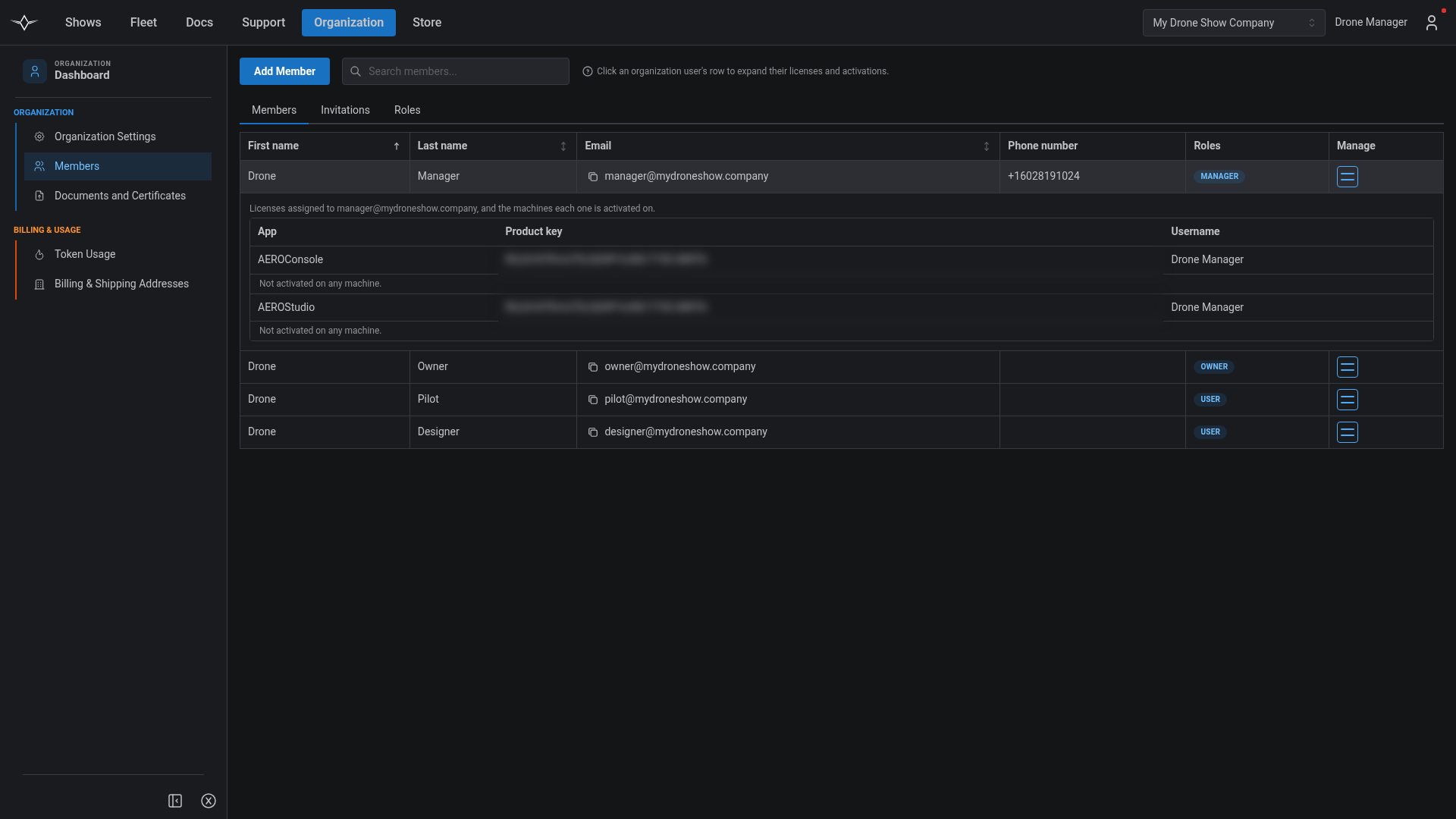
Organization Managers and above can do the same for anyone in the organization, from **Organization → Members**.
**Click a member's row** to expand it. Their licenses appear beneath — one row per application, showing the app name, the product key, and the username it is registered to — and **each license lists the machines it is activated on directly underneath it**. There is no second click: "which machines is this person on" is the question this page exists to answer, so the answer is already on screen.
A license nobody has installed reads *Not activated on any machine.*
A member's row expanded, with each license showing the machines it is activated on.
### Deactivating a machine
**Deactivate** on an individual activation frees that machine's seat. The license stays assigned to the member — you are releasing a seat, not taking their software away, so they can install again on a different machine straight away.
{% hint style="info" %}
Deactivating someone else's machine requires the licenses permission in your organization. Looking at your own row without it, use **My Activations** from the user menu instead — you can always manage your own machines.
{% endhint %}
Deactivating is the only action here. There is deliberately no control that strips a license from a member: that is a genuinely destructive operation — it can turn off the application's entitlement or delete the product key outright — and it does not belong one click away from a routine one. If you need a license reassigned or removed, contact .
## Getting more licenses
Deactivating frees a seat on a key you already have; it does not add licenses. Adding someone to your organization does **not** issue them a [Verge Design Studio](https://github.com/Verge-Aero/VergeDocs/tree/main/drone-show-software/verge-web-portal/verge-design-studio/README.md) or [Verge Console](https://github.com/Verge-Aero/VergeDocs/tree/main/drone-show-software/verge-web-portal/verge-console/README.md) license either — those are managed separately from membership.
To request additional licenses for a new or existing member, contact .
***
For adding, removing, and setting the roles of the people in your organization, see [Managing Organization Members](/drone-show-software/verge-web-portal/managing-organization-members.md).