> For the complete documentation index, see [llms.txt](https://docs.verge.aero/llms.txt). Markdown versions of documentation pages are available by appending `.md` to page URLs; this page is available as [Markdown](https://docs.verge.aero/drone-show-software/verge-web-portal/fleets/rma-requests.md).

# RMA Requests

Submit and track Return Merchandise Authorization (RMA) requests for devices that need repair or replacement.

When a device in your fleet needs servicing — whether for a hardware fault, damage from a hard landing, or a component that has reached end of life — you can open an **RMA (Return Merchandise Authorization)** directly from the Verge Aero Portal. The RMA flow walks you through scanning the affected devices, recording per-device details, and routing the request to Verge's support team. After submission, you'll receive email confirmations and progress updates as the RMA is processed and completed.

***

## Starting an RMA

There are two ways to initiate an RMA, both inside the **Fleet** workspace.

### From the RMA Requests Page

Navigate to **Fleet → RMA Requests** to see every RMA your organization has ever submitted, along with its current status. To open a new request, select **Initiate RMA** in the top toolbar.

<figure><img src="https://1654204364-files.gitbook.io/~/files/v0/b/gitbook-x-prod.appspot.com/o/spaces%2FakGR2bVCZLTNoe2hkqeR%2Fuploads%2Fgit-blob-3a91ecc93031524a2e7b5482328748c9f92689f1%2Frma_requests_page.png?alt=media" alt="Fleet > RMA Requests page listing existing RMAs with their statuses, with the Initiate RMA button in the toolbar"><figcaption><p>The RMA Requests page is the central place to track every RMA your organization has opened. Use the status filter to narrow the list, and select <strong>Initiate RMA</strong> to start a new one.</p></figcaption></figure>

### From a Fleet's Device List

If you already know which devices need to go in for service, it's often faster to start the RMA directly from the fleet view. Navigate to [**Fleet → My Fleets**](/drone-show-software/verge-web-portal/fleets/fleet-management.md) and open the fleet that contains the affected devices.

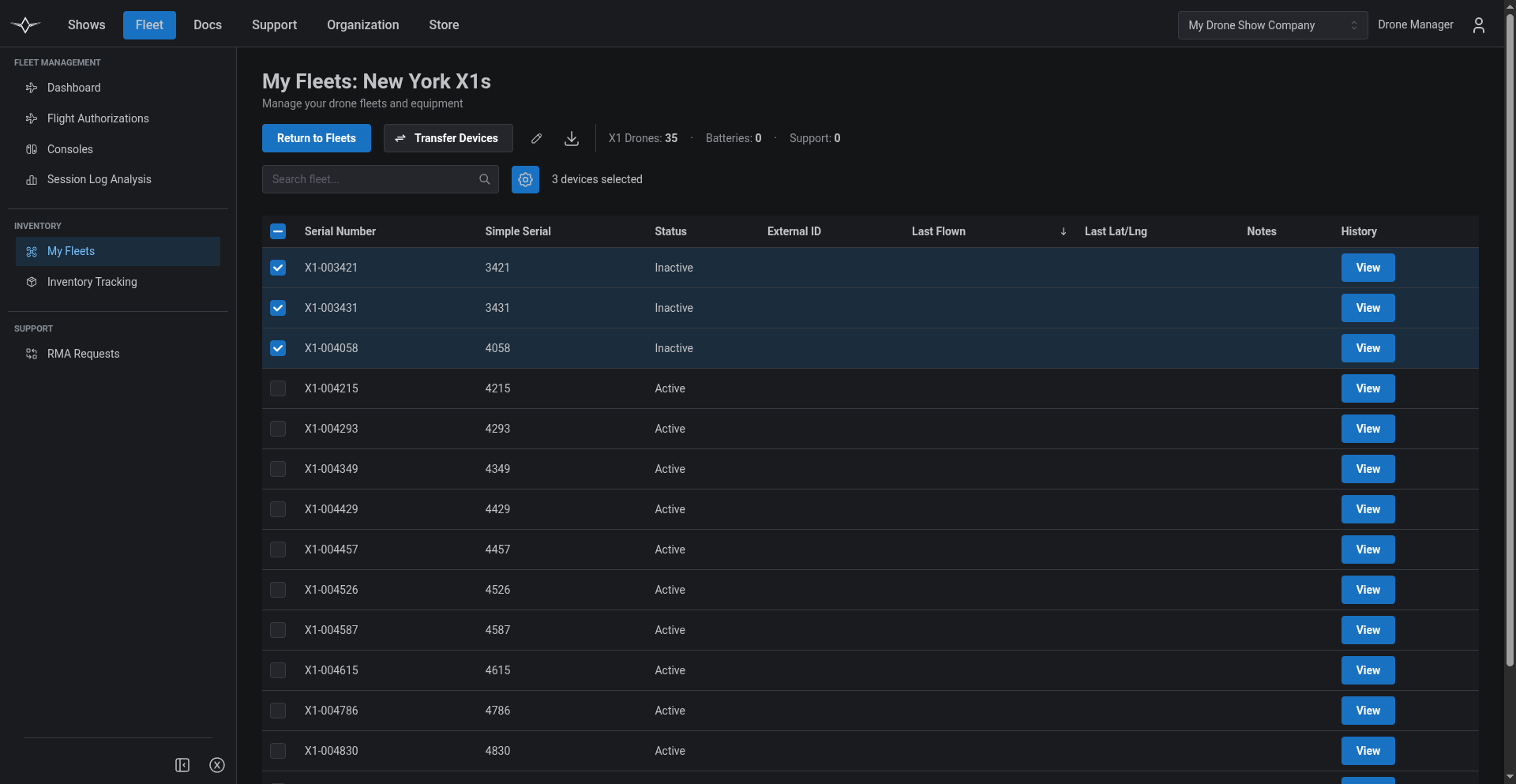
Use the checkboxes on the left side of the device table to select each device that needs an RMA.

<figure><img src="https://1654204364-files.gitbook.io/~/files/v0/b/gitbook-x-prod.appspot.com/o/spaces%2FakGR2bVCZLTNoe2hkqeR%2Fuploads%2Fgit-blob-2daea5cbb31336557ff0ba7e41fb2acde63cb40d%2Finitiate_rma_from_fleet.png?alt=media" alt="Fleet detail view with several device rows checked in the left column"><figcaption><p>Select each device that needs servicing using the checkboxes in the device table. The selection count appears next to the bulk actions cog.</p></figcaption></figure>

With one or more devices selected, open the **cog (⚙) bulk actions menu** at the top of the table and choose **initiate RMA**.

<figure><img src="https://1654204364-files.gitbook.io/~/files/v0/b/gitbook-x-prod.appspot.com/o/spaces%2FakGR2bVCZLTNoe2hkqeR%2Fuploads%2Fgit-blob-b3db1821ea7c55f00b3650aa820993e5cdc9cc8a%2Finitiate_rma_cog.png?alt=media" alt="Cog bulk actions menu open with Initiate RMA, Add Note, and Transfer Ownership options"><figcaption><p>The cog menu becomes active as soon as at least one device is selected. <strong>Initiate RMA</strong> takes you straight into the RMA details form with those devices pre-filled, skipping the scanning step.</p></figcaption></figure>

***

## Adding Devices to the RMA

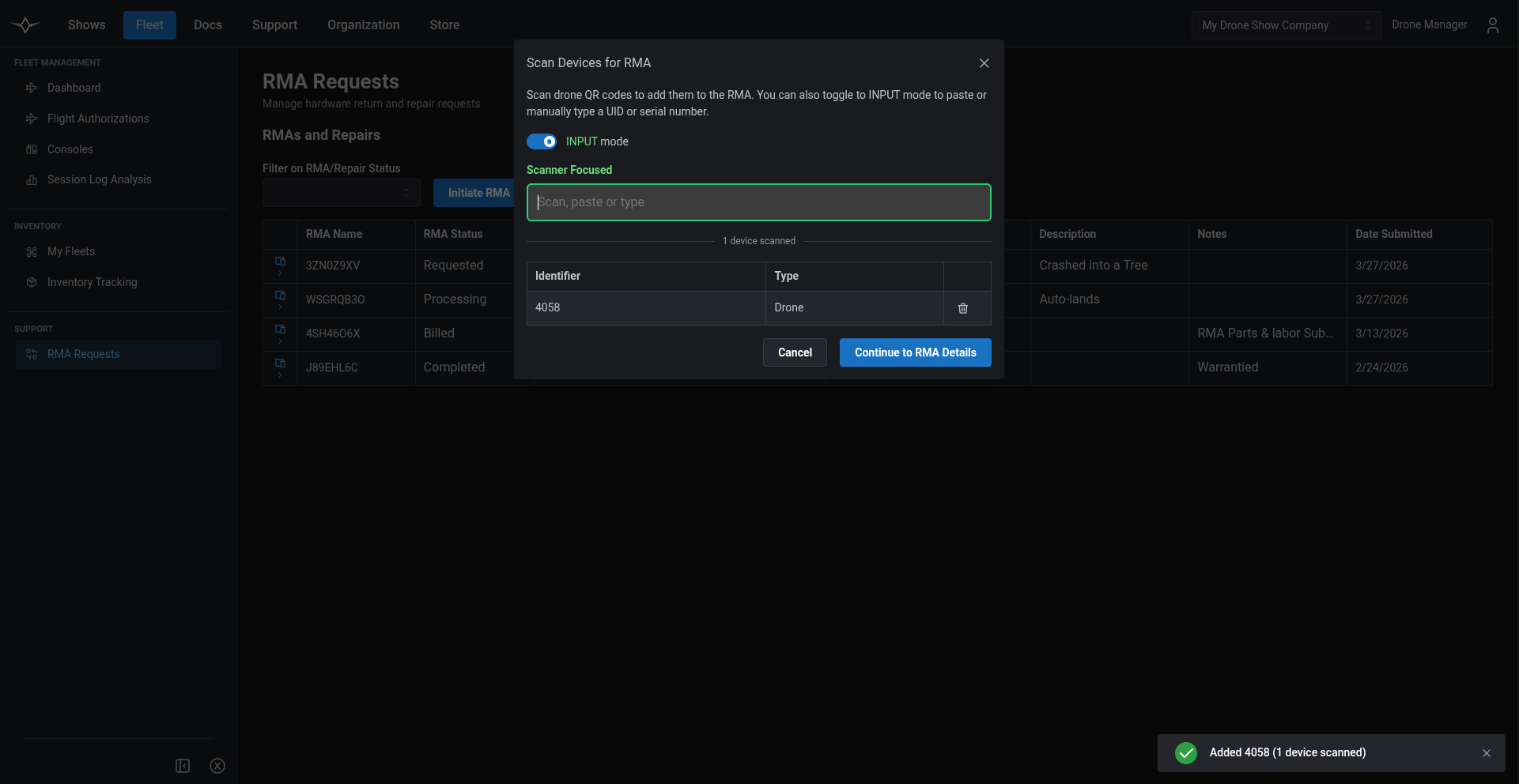
When you start an RMA from the **RMA Requests** page, a scanning dialog opens so you can build up the list of devices to include. (If you started from the fleet list, the devices you checked are already attached and this step is skipped.)

<figure><img src="https://1654204364-files.gitbook.io/~/files/v0/b/gitbook-x-prod.appspot.com/o/spaces%2FakGR2bVCZLTNoe2hkqeR%2Fuploads%2Fgit-blob-86a7eaf262c23aabe8b1173343d9668db0d07406%2Finitiate_rma_modal_1.png?alt=media" alt="Scan Devices for RMA modal showing the camera viewfinder, INPUT/SCAN toggle, and an empty scanned-devices list"><figcaption><p>The Scan Devices for RMA dialog. Switch between camera-based scanning and manual input using the SCAN/INPUT toggle.</p></figcaption></figure>

Three input methods are supported:

| Method                               | When to use                                                                                                                                                                                                                                |
| ------------------------------------ | ------------------------------------------------------------------------------------------------------------------------------------------------------------------------------------------------------------------------------------------ |
| **Phone or laptop camera**           | Default mode. Hold a device's QR label up to the camera and the Portal will read it automatically.                                                                                                                                         |
| **USB barcode scanner** (e.g. Eyoyo) | Toggle to **INPUT** mode and aim the scanner at each label. The scanner types the identifier and presses Enter, which submits the scan.                                                                                                    |
| **Paste from clipboard**             | Toggle to **INPUT** mode and paste a UID or serial number copied from another tool — for example, a CSV column or a chat message. Press Enter to add it. Manually typing into the input box is not supported; the value must be pasted in. |

Each successful scan shows a confirmation toast and adds the device to the list below. If you accidentally add a device twice, you'll see a warning toast — duplicates are ignored. To remove a device from the list, select the trash icon on its row.

When all the affected devices are in the list, select **Continue to RMA Details** to move on.

{% hint style="info" %}
The Portal accepts both **X1 serial numbers** (e.g. `6340`) and **full X7 UIDs** (e.g. `P8DR4T3U96`). The label format on the device tells you which one to use.
{% endhint %}

***

## Entering RMA Details

The next dialog is where you describe the issue, decide who should receive update emails, and add per-device notes.

<figure><img src="https://1654204364-files.gitbook.io/~/files/v0/b/gitbook-x-prod.appspot.com/o/spaces%2FakGR2bVCZLTNoe2hkqeR%2Fuploads%2Fgit-blob-05efc8d9ce8b5269e6e23ff396de8aa531ca1ce2%2Finitiate_rma_modal_2.png?alt=media" alt="Initiate RMA modal with RMA Description, RMA Notes, Send RMA Update Emails To selector, and per-device notes section"><figcaption><p>The Initiate RMA form when launched from the RMA Requests page. The same form is shown when launched from the cog menu, with the selected devices already attached.</p></figcaption></figure>

Fill in the following fields:

| Field                         | Required | Description                                                                                                                                 |
| ----------------------------- | -------- | ------------------------------------------------------------------------------------------------------------------------------------------- |
| **RMA Description**           | Yes      | A short summary of the issue affecting the listed devices. This is the headline our support team sees first.                                |
| **RMA Notes**                 | No       | Any additional context — flight logs to look at, environmental conditions, prior repair history, etc.                                       |
| **Send RMA Update Emails To** | Yes      | The member of your organization who should receive the confirmation email and all subsequent status updates. Defaults to you.               |
| **Return Address**            | Yes      | Where we ship the repaired hardware back to. Pick one of your organization's saved addresses; the default shipping address is pre-selected. |

Below the description fields, the form shows the **per-device notes** section. Use the **Previous Device** and **Next Device** buttons to step through each device in the RMA and record device-specific details — for example, "X1 #6340: motor 3 stalled mid-show" or "X7 P8DR4T3U96: GPS antenna damaged in transit."

<figure><img src="https://1654204364-files.gitbook.io/~/files/v0/b/gitbook-x-prod.appspot.com/o/spaces%2FakGR2bVCZLTNoe2hkqeR%2Fuploads%2Fgit-blob-986cae2c2ba1ff9e9b2bb9130ef457fb5171c5a5%2Finitiate_rma_modal_3_from_fleet.png?alt=media" alt="Initiate RMA modal launched from the fleet cog menu, showing per-device fields for each pre-selected device"><figcaption><p>When the RMA is started from the fleet cog menu, the selected devices are already attached. Use Previous/Next Device to record per-device notes and descriptions.</p></figcaption></figure>

When everything is filled in, select **Submit**.

***

## Tracking Progress

As soon as the RMA is submitted, a confirmation email goes to the address you chose in **Send RMA Update Emails To**. It includes the assigned RMA identifier, the device list, and your description — hold on to it, because that identifier is what links your physical shipment to the request.

<figure><img src="https://1654204364-files.gitbook.io/~/files/v0/b/gitbook-x-prod.appspot.com/o/spaces%2FakGR2bVCZLTNoe2hkqeR%2Fuploads%2Fgit-blob-a92334484ee1ca734a1e3362f8b96433e8c155f1%2Finitiate_rma_email.png?alt=media" alt="Example RMA confirmation email showing the RMA identifier, device list, description, and Verge support contact information"><figcaption><p>The confirmation email functions as your RMA receipt. Verge's support team uses this same email thread to send shipping instructions and progress updates.</p></figcaption></figure>

You are emailed again each time the RMA moves on, and the current state is always visible on the **Fleet → RMA Requests** page:

| Status                 | What it means                                                               |
| ---------------------- | --------------------------------------------------------------------------- |
| **Requested**          | We have your request. Ship the devices in once you have the RMA identifier. |
| **Received**           | Your devices arrived at our facility and are logged against the RMA.        |
| **In Repair**          | Work has started.                                                           |
| **Quality Inspection** | Repairs are done and the work is being reviewed before it goes back out.    |
| **Packing**            | Passed inspection and being packed for return.                              |
| **Awaiting Payment**   | There is something to pay before it ships — see below.                      |
| **Ready to Ship**      | Everything is settled; your hardware is queued to go out.                   |
| **Shipped**            | On its way, with a tracking link in the final email.                        |

{% hint style="info" %}
If you arranged to **collect** the hardware rather than have it shipped, the last two read **Ready for Pickup** and **Picked Up** instead, and you get a "come and collect it" email when it is ready.
{% endhint %}

### Paying for a repair

When an RMA reaches **Awaiting Payment**, you are sent a checkout email with a payment link. That email *is* the notification — there is no separate status message — so it is the one to watch for if an RMA seems to have stopped moving.

Two situations reach this state:

* **A chargeable repair** — the checkout is itemized with the parts and labour, plus shipping if we are arranging it.
* **A warranty or free repair where you owe return shipping** — the repair itself is £0 but the shipping is not, so the checkout covers shipping only.

A free repair with nothing at all to collect skips this step entirely and goes straight to **Ready to Ship**, with an itemized zero-cost receipt for your records.

## Devices Not Owned by Your Organization

For security and traceability, you can only open an RMA on devices that are currently assigned to a fleet your organization owns. If you scan or paste an identifier for a device that doesn't belong to your organization, the Portal will block it and show an explanatory alert.

<figure><img src="https://1654204364-files.gitbook.io/~/files/v0/b/gitbook-x-prod.appspot.com/o/spaces%2FakGR2bVCZLTNoe2hkqeR%2Fuploads%2Fgit-blob-e941faeeeff42016addde034b7ef758e88eb7704%2Fno_access_to_device.png?alt=media" alt="Red alert in the scan dialog reading &#x27;You do not have permission to access this device&#x27; with a link to open a support request"><figcaption><p>If a scanned device isn't part of your organization's fleet, the Portal blocks it from being added to the RMA and offers a link to open a support request.</p></figcaption></figure>

This typically happens for one of three reasons:

1. **The device was sold or transferred to another organization** and the records are correct — the new owner should open the RMA.
2. **A typo or misread** — double-check the identifier on the physical label and try again.
3. **Ownership is out of date in our systems** — for example, a recent fleet transfer hasn't been recorded yet.

If you believe the device really should be yours, follow the **open a support request** link in the alert. This routes you to the **Support Requests** page where you can submit a ticket and the Verge team will help reconcile the ownership record so you can complete the RMA.

{% hint style="warning" %}
Don't ship a device for repair before the RMA is open and acknowledged. The RMA identifier is what links your physical shipment to the request in our system — without it, devices arriving at our facility cannot be matched back to your organization.
{% endhint %}