For the complete documentation index, see llms.txt. This page is also available as Markdown.

FAA Registrations

Upload your drones' FAA registrations to the Verge Aero Portal, and get warned before they expire.

Every drone you fly in the United States carries an FAA registration number with an expiry date. The Portal stores both against each drone, so your registration status lives beside the rest of your fleet record — and so it can warn you before a registration lapses.

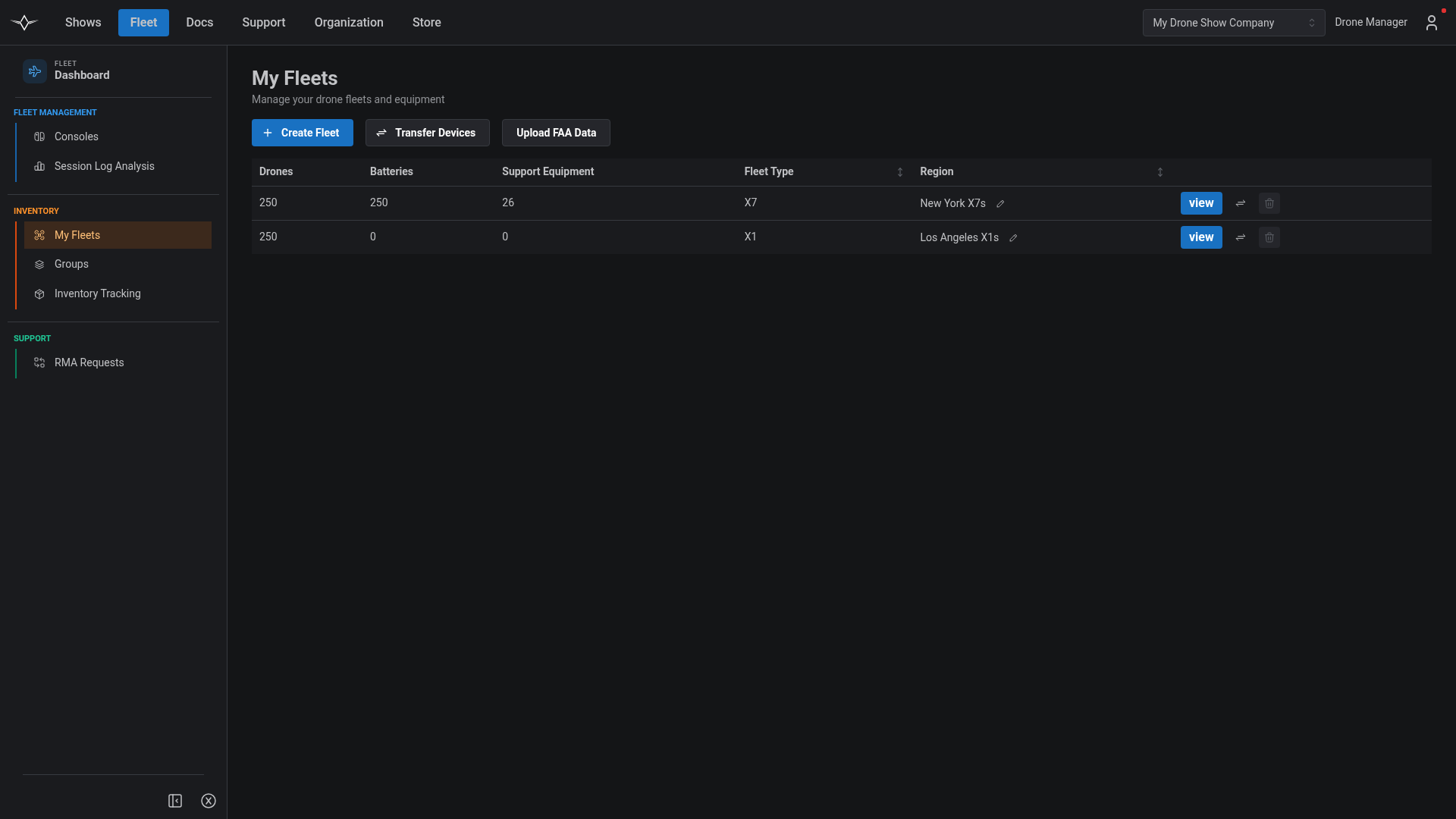
Navigate to Fleet → My Fleets to upload registrations. Upload FAA Data appears both on the fleet list and inside an individual fleet, so you can reach it from either screen.

My Fleets page with Create Fleet, Transfer Devices, and Upload FAA Data in the toolbar
The Upload FAA Data action sits in the My Fleets toolbar.
Uploading Registrations

Registrations are uploaded as a .csv exported from FAA DroneZone. Export the file and upload it unchanged — the Portal reads the export format directly, so there is no need to reformat it.

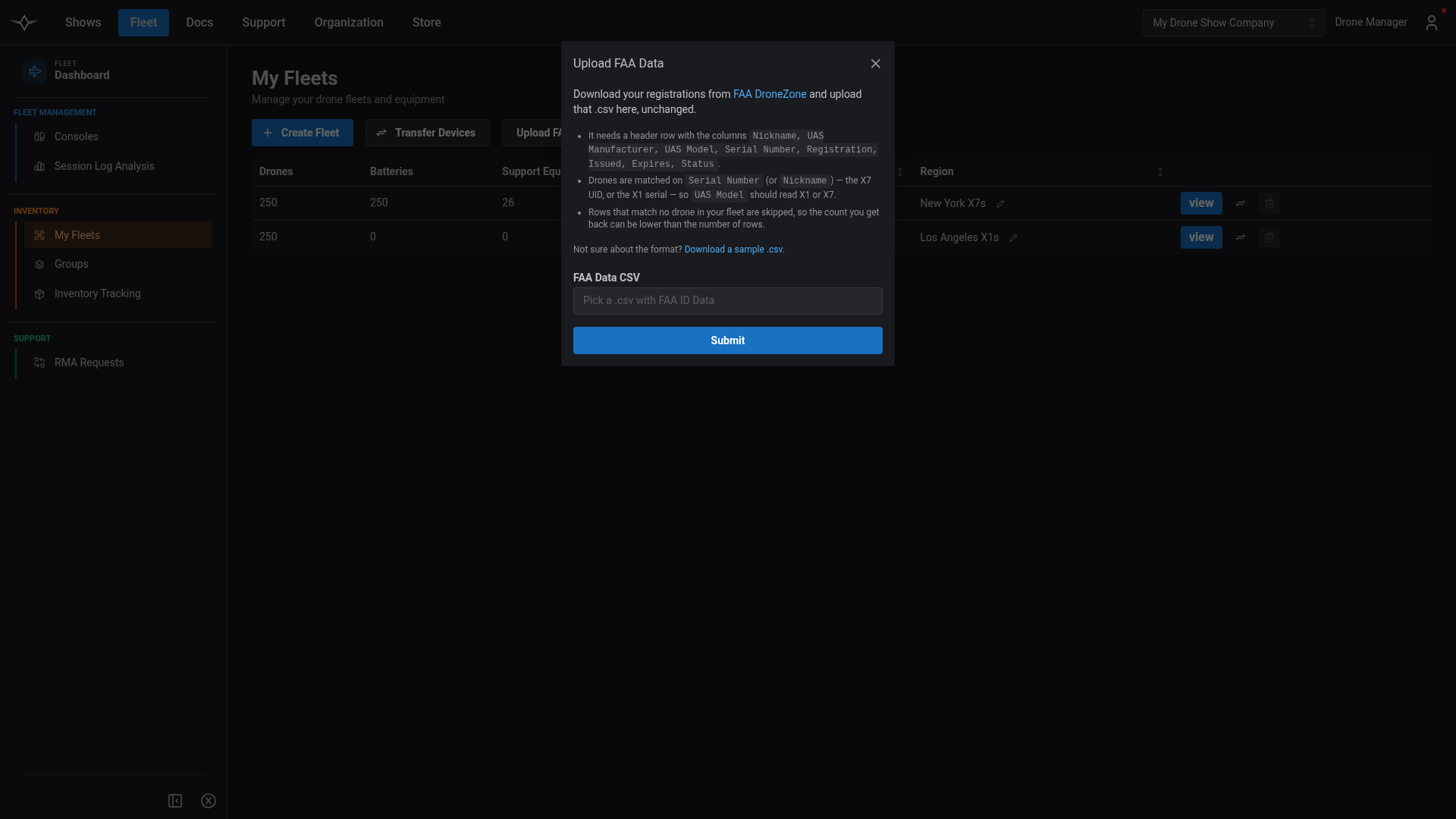
Select Upload FAA Data to open the upload dialog.

Upload FAA Data dialog showing the DroneZone link, the required columns, and a sample CSV download
The upload dialog names the required columns and links to a sample file.

File Format

The file needs a header row with the following columns:

Column
Used for

Serial Number

Identifies the drone — the X1 serial, or the X7 UID.

Nickname

Identifies the drone when Serial Number is blank.

UAS Model

Should read X1 or X7.

Registration

The FAA registration number, stored against the drone.

Issued

The date the registration was issued.

Expires

The expiry date. This is what the renewal reminders are based on.

UAS Manufacturer

Not used for matching; present in the DroneZone export.

Status

Not used for matching; present in the DroneZone export.

How Drones Are Identified

DroneZone fills these columns differently for X1 and X7 aircraft, and the Portal reads both:

  • X1 rows normally carry the serial number in Serial Number, often repeated in Nickname — for example 5725.

  • X7 rows normally leave Serial Number blank and carry the UID in Nickname, usually as the drone's link — for example https://vrg.fyi/P8DREBY4PU. The Portal accepts the link or the bare UID.

Select Download a sample .csv in the dialog for a small example showing both.

A row that does not match a drone in your fleet is skipped rather than rejected. This is why the confirmation can report fewer updates than the number of rows in your file — a full DroneZone export may include aircraft that are not Verge drones, or drones belonging to another organization.

If the File Is Rejected

If the Portal cannot read the file, it explains why and leaves the dialog open with your file still selected, so you can correct it and try again.

Upload dialog showing a rejection message above the format instructions
A rejected file explains what was wrong without closing the dialog.

The most common cause is a file that has no header row — for example, a hand-built list of UIDs and registration numbers. The Portal matches columns by name, so the header row is what tells it which column is which.


Expiry Reminders

The Portal emails your organization when registrations are approaching their expiry date, so a renewal is not missed.

When
Who is emailed

90 days before

Everyone in your organization who can manage fleets

30 days before

Everyone in your organization who can manage fleets

7 days before

Everyone in your organization who can manage fleets

Each email lists the affected drones, their registration numbers, and the expiry date, and links back to My Fleets. Drones are grouped into a single email per expiry window, so a fleet registered in one batch produces one reminder rather than one per drone.

Reminders are based on the Expires date from your most recent upload. Uploading renewed registrations updates the date, and the reminders follow it automatically.


Who Can Upload

Uploading FAA data requires permission to manage fleets in your organization. If you do not see the Upload FAA Data action in the My Fleets toolbar, ask an Owner or Manager in your organization to grant it, or to perform the upload for you.

Registrations you upload only ever apply to drones your own organization owns.

Last updated

Was this helpful?