> For the complete documentation index, see [llms.txt](https://docs.verge.aero/llms.txt). Markdown versions of documentation pages are available by appending `.md` to page URLs; this page is available as [Markdown](https://docs.verge.aero/drone-show-software/verge-web-portal/fleets/device-groups.md).

# Device Groups

A **Device Group** is an arbitrary collection of devices your organization owns, built up by scanning, uploading a list, or picking from your existing fleets. Unlike a fleet — which represents *where a device lives* — a group represents *a set of devices you'd like to act on together*. Devices stay in their original fleets after being added to a group, and a single device can belong to any number of groups at once.

Groups are useful any time you find yourself working with the same set of drones repeatedly — for example, the X7s headed to a particular tour, every drone that auto-landed last show, or the units selected for a firmware compatibility test. Once a group is created, the row actions menu lets you spin a new fleet out of it, initiate an RMA on every device, email the list to support, or export it as a CSV — without having to scan or assemble the list a second time.

Navigate to [**Fleet > Groups**](https://github.com/Verge-Aero/VergeDocs/blob/main/fleet/groups/README.md) in the Verge Aero Portal to access this feature.

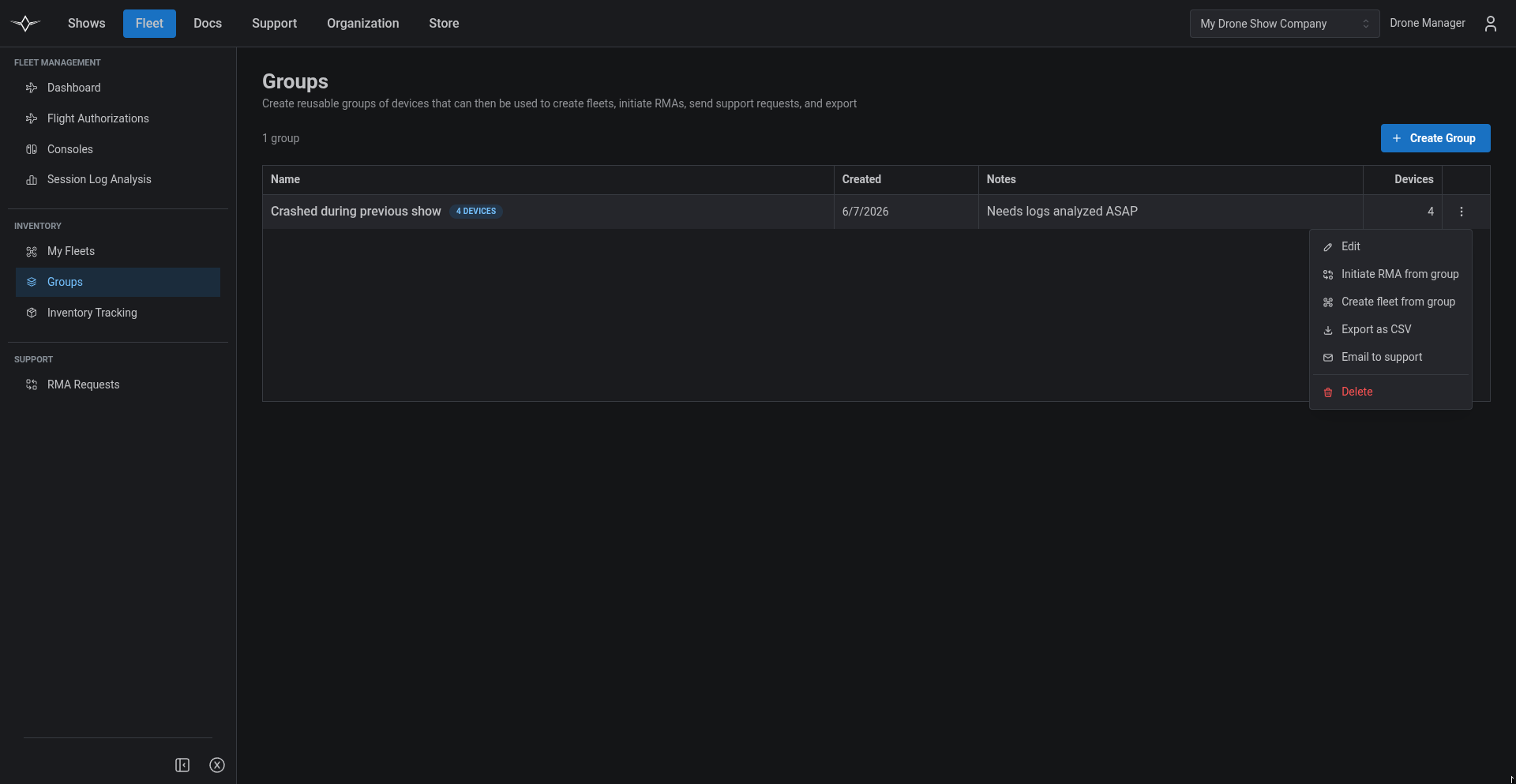
<figure><img src="/files/V7SRSbTfF0IZU6gPSb2s" alt="Groups page in the Fleet workspace showing a table of device groups with name, created date, notes, device count, and per-row actions menu"><figcaption><p>The Groups page lists every device group your organization has created. Each row is expandable to reveal the devices in that group and has an actions menu for downstream operations.</p></figcaption></figure>

***

## Creating a Group

Select **Create Group** in the top toolbar to open the group creation dialog.

<figure><img src="/files/JbhNc8Bqdv8rtuXefzgN" alt="Create Device Group modal with Group Name field, optional Description field, and a tabbed Add Devices section offering Scan UIDs, Upload File, and Pick from My Devices tabs"><figcaption><p>The Create Device Group modal. Provide a name and an optional description, then build the device list using any combination of scanning, file upload, and picking from existing fleets.</p></figcaption></figure>

Fill in the following fields:

| Field           | Required | Description                                                                                                                          |
| --------------- | -------- | ------------------------------------------------------------------------------------------------------------------------------------ |
| **Group Name**  | Yes      | A short label that identifies the group — e.g. `Tour: West Coast 2026 X7s`, `Bird-strike survivors`, or `Firmware rollout cohort A`. |
| **Description** | No       | Free-form notes about why the group exists or how it should be used. Visible on the Groups page and included in the support email.   |

### Adding Devices

The **Add Devices** section offers three tabs — you can mix and match them in the same group.

| Tab                      | When to use                                                                                                                                                  |
| ------------------------ | ------------------------------------------------------------------------------------------------------------------------------------------------------------ |
| **Scan UIDs**            | Physical access to the drones. Hold each drone's QR label up to the camera, or toggle to **INPUT** mode and use a USB scanner (e.g. Eyoyo).                  |
| **Upload File**          | You already have a list of identifiers — pasted from a spreadsheet, exported from another tool, etc. Upload a `.csv` or `.txt` with one identifier per line. |
| **Pick from My Devices** | Pick visually from a paginated, searchable table of every device in your organization's fleets. Easiest when the drones aren't physically nearby.            |

Each device that's been added — by any of the three methods — appears in the **devices to be added** preview list at the bottom of the modal. Use the trash icon to remove any device added by mistake. The preview is paginated 10 per page; the total count above the list reflects every staged device.

{% hint style="info" %}
The Portal accepts both **X1 serial numbers** (e.g. `6340`) and **full X7 UIDs** (e.g. `P8DR4T3U96`). The label format on the device tells you which one to use.
{% endhint %}

### Validation and Ownership

Every device added to a group must currently belong to a fleet your organization owns. The Portal checks this as you scan and again when you submit the form. If any identifier doesn't match a device in our system, or matches a device that's not in one of your fleets, the modal surfaces an alert listing exactly which identifiers were rejected and why. The group is not created until all listed devices pass validation — so fix or remove the bad entries and try again.

Select **Create Group** to confirm. The new group appears at the top of the Groups page immediately.

***

## Inspecting a Group

Each row on the Groups page summarizes one group: its name, the date it was created, the description (truncated, with the full text on hover), and its device count. Select the chevron at the left of the row to expand it and load the full device list for that group.

The expanded view shows each member device with its identifier, current status, last connection date, and the email of the user who last connected it. The list is fetched on-demand when you expand the row, so groups with thousands of devices won't slow down the main table.

***

## Acting on a Group

Each group has an **actions menu** (the `⋮` icon at the right of the row) that exposes the downstream operations a group is designed to enable. Every action operates on the group's current device list — there's no need to re-scan or re-upload.

| Action                      | What it does                                                                                                                                                                                                                                                                     |
| --------------------------- | -------------------------------------------------------------------------------------------------------------------------------------------------------------------------------------------------------------------------------------------------------------------------------- |
| **Edit**                    | Change the group's name or description. The device list isn't editable here — to change membership, create a new group.                                                                                                                                                          |
| **Initiate RMA from group** | Pre-fills every device in the group into the [Initiate RMA form](/drone-show-software/verge-web-portal/fleets/rma-requests.md#entering-rma-details). You enter the RMA description, notes, and per-device details from there.                                                    |
| **Create fleet from group** | Opens a small dialog asking for a fleet **region**. Submits a [new fleet creation](/drone-show-software/verge-web-portal/fleets/fleet-management.md#creating-a-fleet) with the group's devices already attached. The fleet type (X1 / X7) is inferred from the group's contents. |
| **Export as CSV**           | Downloads a CSV with one row per device: identifier (X1 serial number when present, otherwise full UID), last connection date, last connected user's email, and last known latitude / longitude.                                                                                 |
| **Email to support**        | Sends the group — name, description, an optional message you provide, and the same CSV — to `support@vergeaero.com`. You're CC'd on the email so you have a record of the request.                                                                                               |
| **Delete**                  | Removes the group. The devices themselves stay in their fleets — only the group record is removed. A confirmation prompt is shown first.                                                                                                                                         |

<figure><img src="/files/7SNa42qUTJlH7qr6K1rq" alt="Email Group to Support modal with the group name displayed in the title and an Optional Message textarea"><figcaption><p>The Email to Support dialog. Use the optional message field to add any context — what's wrong, what you need from us, deadlines, etc. The CSV and group metadata are attached automatically.</p></figcaption></figure>

{% hint style="info" %}
Deleting a group **does not** delete its devices or remove them from their fleets. It only removes the grouping itself.
{% endhint %}

***

## When to Reach for a Group

Some patterns where groups pay off:

* **Recurring touring fleets.** Build a group of every drone heading out for a tour, then **Create fleet from group** to spin up the regional fleet when the tour kicks off — much faster than re-scanning each drone.
* **Batch RMAs.** When a single hardware issue affects many drones, scan them all into one group once and use **Initiate RMA from group** to bundle them into a single RMA.
* **Support escalations.** Email a curated list of devices to `support@vergeaero.com` with context about a problem — the CSV travels with the email so the engineer who picks it up has everything they need.
* **Inventory snapshots for accounting / compliance.** Export the group to CSV any time you need a reproducible list of devices for an audit, insurance filing, or other reporting workflow.
